Local Backup Solution for Windows
Local backup software stores copies of your data on physical devices such as internal drives, external disks, or local servers, ensuring fast access and full control. Unlike cloud solutions, it works without the Internet, offering greater speed and privacy. Handy Backup enhances this approach with flexible automation, smart data selection, and secure storage, making local backups simple and reliable.




Key Benefits of Local Backup in Handy Backup

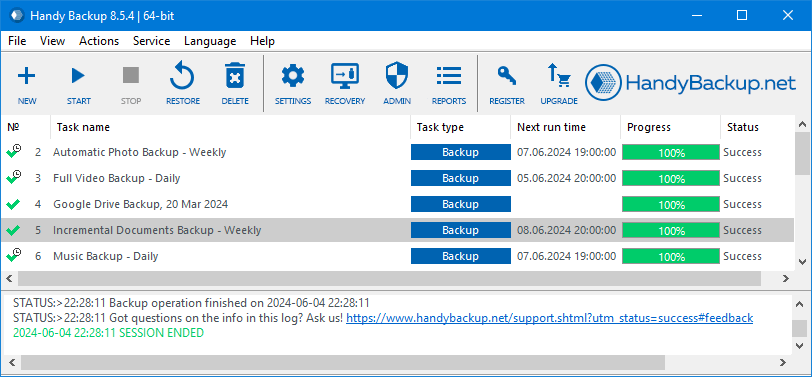
Select backup sources via a plugin-based system for files, folders, applications, and system data.
Apply file mask filters (e.g., *.docx, *.jpg, *.pdf) to precisely include or exclude data by type.
Access backup data in native format without full restore, enabling immediate file-level use.
Start backup tasks automatically on USB connection when external drives are plugged in.
Use full, incremental, and differential backup modes to efficiently reduce storage usage.
Protect archives with encryption, compression, and password-based access control.
Back up cloud and email data to local storage for offline access and full control.
Automate backup workflows using scheduling policies based on time, intervals, or events.
Local Backup Solution Testimonial
I’ve been using Handy Backup for many years, and it continues to be one of the most reliable tools I own. It just works — simple as that. I have complete confidence that my files are safely backed up, and that peace of mind is invaluable. The software runs smoothly in the background without any hassle, and I couldn’t be more satisfied with its performance. Highly recommended!
Michael Simpson, Ph.D., Psychologist & Life Coach
Recommended Solution
Lifetime license
Home Backup Solution
Handy Backup Standard provides a flexible solution for users looking for the best local backup software, offering reliable backup of files, folders, and libraries to internal or external drives, while also supporting seamless multi-cloud backup, including services such as Google Drive, OneDrive, and others, for a more complete and reliable data protection strategy.
Customer Use Case

Scenario
- Windows 10 laptop with a 250 GB SSD for the system and a 1 TB internal HDD for data storage.
- The user wants to protect files using two external drives with minimal manual interaction.
- There is a need for both automatic file backups and full system backup for complete recovery.

Key Challenges
- Keeping external drives always connected increases security and hardware risks.
- Manual backups are easy to forget and often inconsistent over time.
- Recovery should be fast and simple, without complex backup chains.
Local Backup Solution with Handy Backup
Automated data protection
Handy Backup allows creating tasks that run automatically when a USB drive is connected. This means external drives do not need to stay plugged in all the time.
Users simply connect the drive, and the backup starts automatically, combining convenience with improved security.
Using two external drives
- First drive → regular automatic backups
- Second drive → periodic backup for redundancy
Drives can be rotated, so one remains disconnected most of the time, reducing risks.
Full system backup
- Handy Backup also supports system image backup
- This allows creating a full copy of the operating system and restoring it on a new device if the laptop fails.
Flexible backup setup
- Select specific files or entire folders from the 1 TB drive
- Choose the backup destination (external HDD or SSD)
- Use differential or incremental backup methods to save time and storage space
- Keep files in native format for easy access without restore
Drives can be rotated, so one remains disconnected most of the time, reducing risks.
Benefits
- No need to keep drives always connected
- Automatic backup on USB connection
- Simple setup for non-technical users
- Support for both file-level and full system backup
- Reliable recovery in case of data loss or hardware failure
How to Set Up a Local Backup Task in Handy Backup
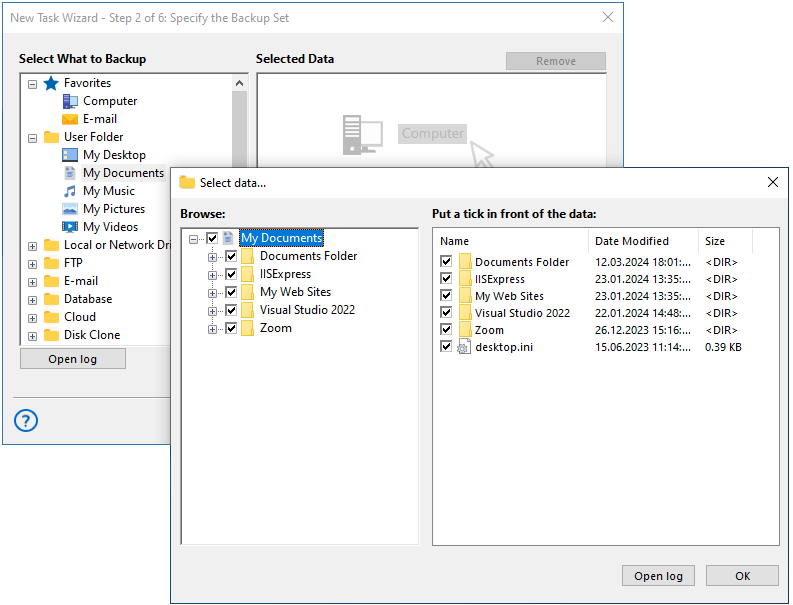
This example shows how to create a simple local data backup by copying the “My Documents” folder to a local drive (C:). The setup is designed to be quick and requires no advanced configuration.
- Start by creating a new backup task in Handy Backup and selecting the backup type. In the data selection step, open the “User Folders” section and choose “My Documents” as the source data.
For this basic scenario, advanced mode can remain disabled. Additional options such as scheduling, encryption, or filters can always be configured later in the task settings.
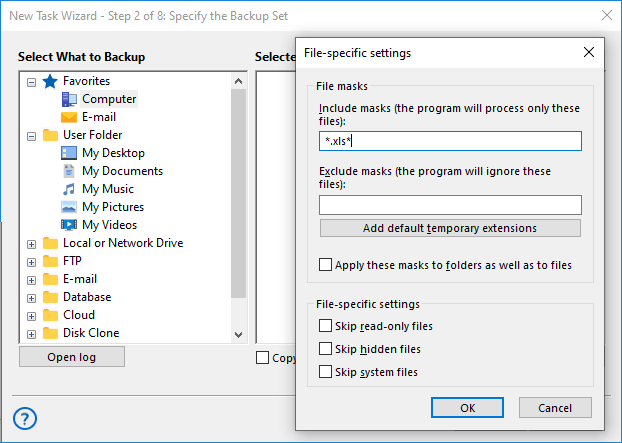
- Next, choose the backup destination. In the “Computer” section, expand the C: drive and select the folder where the backup will be stored.
File masks (on the left) allow precise selection of data by file type (e.g., *.docx, .jpg, .pdf).
- Finish the setup and run the task. Handy Backup will create a copy of the selected folder in the chosen destination directory.
After execution, you can open the destination folder in Windows Explorer and immediately access your files. Since Handy Backup stores data in native format, no restore process is required for file-level access.
 Download Trial
Handy Backup delivers simple and reliable data protection for users seeking the best local backup software, with flexible automation and full control over backup processes. Start your 30-day full-feature trial for free.
Why Local Backup Is Still Important Today

Fast and direct access to data
Local data backup provides immediate access to files without relying on internet connections or external servers. Data stored on local drives can be restored or used instantly, which is especially important when time matters.

Full control over your data
With local storage, users maintain complete control over where and how their data is stored at all times. There is no dependency on third-party cloud providers, subscriptions, or external infrastructure.

Reliable recovery in any situation
Local backups are not affected by internet outages or cloud service disruptions. In case of system failure, data can be recovered directly from physical devices such as external drives or internal disks.

Best results with a hybrid approach
In practice, the most effective strategy combines local and cloud backup. Local copies ensure fast recovery, while cloud storage adds an extra layer of protection against physical damage or loss.
FAQ about Local Backup Solution
What devices can be used for local data backup?
Various storage devices can be used for local backup. The most common options include internal hard drives (HDD), SSDs, external USB drives, flash drives, and memory cards. In corporate environments, NAS storage systems or local servers are also frequently used to perform network backup.
Handy Backup supports most popular storage devices, allowing users to save data on internal drives, external USB devices, network storage, and other locations. This makes it a convenient solution for organizing and managing backup storage.
What is the difference between local backup and cloud backup?
Local backup stores copies of data on a physical device located near the computer, such as a hard drive or USB storage device. This approach provides high data transfer speeds and fast access to backup copies.
Cloud backup, on the other hand, stores data on remote servers over the Internet.
Handy Backup supports both backup approaches. With the software, you can create local backups on disks and servers within your network, as well as use cloud services such as Google Drive, OneDrive, Dropbox, or S3-compatible cloud storage. This allows you to combine multiple data storage methods and improve overall data protection.
Can a local server be used for storing backups?
Yes, local servers are often used to store backup copies in companies and organizations. Such servers can receive backups from multiple computers and act as a centralized storage location within the network. This simplifies administration and allows better control over backup storage.
In corporate environments, backups are typically created not only from workstations but also from multiple local servers. Therefore, it is important to manage backup tasks centrally and monitor backup operations across the local network.
With Handy Backup Server Network, you can organize centralized backup for multiple servers and workstations. Tasks are managed from a single console, simplifying administration and allowing administrators to monitor backup operations across all computers in the network.
How often should local backups be performed?
The frequency of backups depends on the type and importance of your data. For working documents and projects, daily backups are usually sufficient, while critical data may require hourly or more frequent backups. Regular backups help minimize the risk of data loss.
Handy Backup allows you to automate this process using the built-in task scheduler. Users can configure scheduled backups to run daily, weekly, or even at intervals of just a few minutes. This helps keep backup copies up to date without manual intervention.