FTPS Plug-in Configurations
To create backup, restore, or synchronize tasks with the use of the FTPS plug-in, you need to create the respective configuration. Configuration defines how to connect and work with your FTPS server. The configuration dialog contains three tabs: General, Proxy and Advanced.
FTPS Configuration: General
Under the General tab, you need to specify FTPS server address, authorization parameters, and remote FTPS folder (optionally).
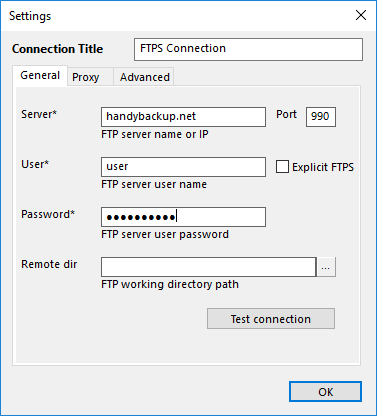
The dialog consists of five fields:
- Server
- Port
- User
- Password
- Remote dir. In this field, you can specify FTPS folder that configuration will point to. This is the folder that you will see when expanding top-level folder in the FTPS plug-in file system. You can enter a path manually, or click the Select Folder
 button and browse for it. If you leave this field empty, then the configuration will point to a root folder provided by the server for the given user.
To test that server parameters are correct, click the Test connection button.
FTPS Configuration: Proxy
If you are behind a proxy, you can specify its parameters under the Proxy tab. If you leave these field empty, the program will use general settings set in the program (refer to Proxy Settings for details). Settings in plug-in configuration override general settings.
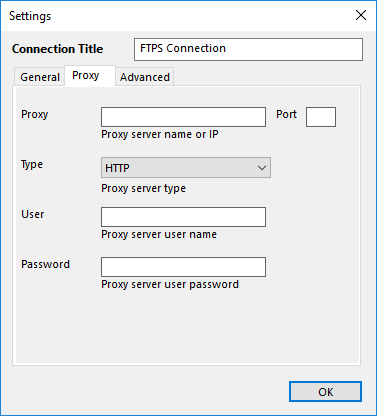
There are five fields:
- Proxy
- Port
- Type – HTTP, SOCKS4 or SOCKS5
- User
- Password
If your proxy server doesn’t require authorization, leave the User and Password fields empty.
FTPS Configuration: Advanced
Under the Advanced tab, you can tune how the plug-in interacts with a remote server. Default settings should work well with all popular FTPS servers, but if something doesn’t work for you, you can change them.
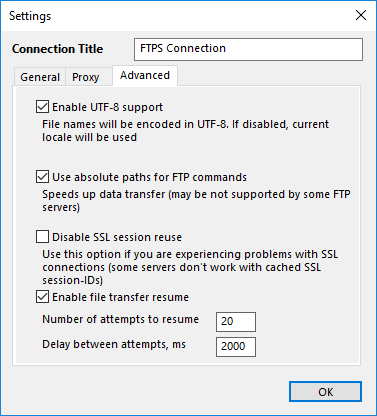
There are four options:
- Enable UTF-8 support
- Use absolute paths for FTP commands. If the default settings don’t seem to work with your FTPS server, try unchecking this box.
- Disable SSL session reuse
- Enable file transfer resume
You can read general description of configurations in Plug-in Configurations.
Contents: