Adobe Backup Software for Automated File Backup
Adobe Creative Cloud backup software by Handy Backup protects Photoshop, Illustrator, InDesign, Acrobat and other creative project files stored on your Windows PC. Set up an automatic backup once and keep your work on an external drive, NAS, network storage, FTP server or cloud.
 Download Trial





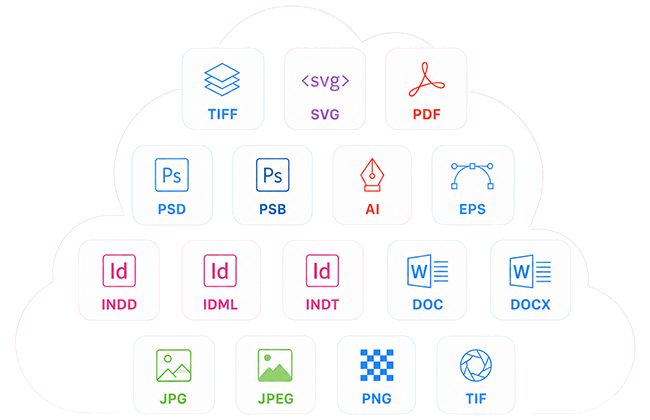
Back Up Adobe Files in Their Original Format
Creative work rarely lives in one file type. A single project may include Photoshop documents, Illustrator graphics, InDesign layouts, PDFs, reference images, Word files and exported artwork.
Handy Backup works with Windows files regardless of extension, including PSD, PSB, AI, EPS, PDF, SVG, INDD, IDML, INDT, DOC, JPG, JPEG, PNG, TIF and TIFF. This makes it easy to protect mixed Adobe project folders while keeping files accessible in their original formats.
Original Format - Easy Restore
A backup is more useful when you can actually get to the files. Handy Backup works as Adobe backup software that can keep uncompressed and unencrypted file backups in their original directory structure and native formats.
That means you can open a backed-up PSD in Photoshop, an AI file in Illustrator or an INDD document in InDesign directly from the backup location. You can also copy an individual file back with Windows File Explorer instead of restoring a large backup archive first.
Adobe Cloud Storage Is Useful. It Is Not the Same as Independent Backup
Adobe provides cloud documents, autosave, version history and collaboration features for supported applications. These tools are useful when you work across devices or need to return to an earlier version of a cloud document. They do not replace a separate backup of all the project files stored on your computer. Local PSD, AI, INDD, EPS, PDF, JPEG and other project files may exist outside Adobe Cloud Documents, while linked assets and supporting files can be spread across several folders or drives. An independent Adobe backup solution also gives you control over where another copy is stored. You can keep it on hardware that you own or in a cloud service that is separate from your Adobe account.
| Capability | Adobe Cloud Features | Handy Backup |
|---|---|---|
| Cloud Document Autosave | Yes for supported Cloud Documents | Not required |
| Cloud Document Version History | Yes | Backup versions can be created on schedule |
| Back Up Regular Local Adobe Files | No not a general PC backup system | Yes |
| Preserve PSD, AI, INDD and Other Native Files | Depends on how files are stored | Yes |
| Back Up Mixed Project Folders | Limited to Adobe storage workflows | Yes |
| Backup to External HDD or SSD | No | Yes |
| Backup to NAS | No | Yes |
| Backup to Another Cloud Service | Not its purpose | Yes |
| Scheduled Unattended Backup | Cloud synchronization and autosave | Yes |
Why Use Handy Backup for Adobe Creative Cloud Files?

Keep original Adobe file formats: save PSD, AI, INDD, EPS, PDF, JPEG, PNG and other files without converting them into a proprietary backup container.
Automate your creative file backup: run backup tasks daily, weekly or on another schedule without manually copying project folders.
Choose your own backup storage: save files to local and external drives, USB devices, NAS, network folders, SFTP, WebDAV, OneDrive, S3 and other cloud storage.
Restore one file when that is all you need: recover a single design, image, or document instead of restoring the entire project.
Protect more than Adobe files: the same backup task can include Word documents, images, exported PDFs, reference files and other project data, helping you protect the complete working folder instead of only the files created in Adobe applications.
Protect Complete Creative Projects, Not Just the Main File
A Photoshop PSD or an InDesign document may be the center of a project, but it is rarely the whole project. Designers often work with linked images, exported versions, reference material and documents stored beside the main Adobe file.
Handy Backup lets you select the complete working folder. When new supported files are added to that folder, they can be included in the next scheduled backup automatically. This reduces the chance of protecting the main document while forgetting an important supporting asset.
Backup Adobe Files to External Drives, NAS or Cloud
Keeping the second copy on the same PC provides limited protection if the drive fails or the computer is lost. Handy Backup allows you to place your Adobe Creative Cloud file backup on another storage device.
For a simple workstation setup, an external HDD or SSD is often enough. Users with larger creative libraries can back up to NAS or network storage. An additional cloud copy can provide off-site protection for important client and business projects.
Automatic Backup for Working Adobe Folders
Creative files change constantly. Adobe backup software can automate this routine, so you do not have to manually copy project folders at the end of every workday, especially when you are working against a deadline.
As Creative Cloud backup software, Handy Backup can run tasks automatically according to your schedule. Incremental and differential backup options can reduce repeated copying by saving changed data instead of creating a new full copy every time.
Adobe Photoshop and Lightroom Backup
Photoshop users can use Handy Backup to protect Photoshop files, PSD documents and related project folders while preserving their original formats. A dedicated Photoshop backup setup can also include the other files used as part of the editing workflow.
Photographers often have a different requirement. A Lightroom backup may involve catalogs, previews, presets and original image folders. These files should be considered together when building a reliable photography backup strategy.
How to Back Up Adobe Creative Cloud Files with Handy Backup
Create a New Backup Task
Install Handy Backup and create a new Backup task.
Select Your Adobe Project Files
Select the Computer data source and choose the folders containing your Adobe projects.
Can Handy Backup Back Up PSD, AI and INDD Files?
Yes. Handy Backup can back up regular Adobe Creative Cloud files stored on a Windows computer, including PSD, AI, INDD, EPS and PDF files, as well as DOC, DOCX, PNG, JPEG and other project files.
The program does not convert these files simply because they come from an Adobe application. With native-format backup enabled, the backup retains the original file type and can be browsed as regular files.
What About Adobe Cloud Documents?
Handy Backup protects files that are available through the Windows file system. If a document exists only as an Adobe Cloud Document and has no local file available to Windows, it must first be saved or exported locally before Handy Backup can protect that copy.
This distinction makes Handy Backup an independent backup layer for your actual working files rather than another synchronization service tied to the Adobe account.
Recommended Solution
Lifetime license
Home Backup Solution
Handy Backup Standard is a simple and reliable solution for automatically backing up Adobe Creative Cloud files stored on your Windows PC. It preserves PSD, AI, INDD, EPS, PDF, JPEG, PNG and other files in their native formats and can save copies to external drives, NAS, network storage, FTP or cloud storage.
Keep Your Creative Work Under Your Control
Adobe applications are built for creating and editing content. Handy Backup adds an independent layer for protecting the files that content depends on.
Use one automated task to protect Adobe files and their supporting documents, keep copies in storage you control, and retain familiar native file formats for straightforward recovery.
Try Handy Backup free for 30 days and create your first automatic Adobe Creative Cloud file backup.
FAQ
Can Handy Backup back up Adobe Creative Cloud files in their native formats?
Yes. Handy Backup can back up Adobe files stored on your Windows computer while preserving their original file formats. This includes PSD and EPS files from Photoshop, AI files from Illustrator, INDD files from InDesign, PDF documents, JPEG and PNG images, and many other file types. When compression and encryption are not enabled, backup copies can remain regular files that can be accessed directly from the backup destination.
Does Handy Backup support PSD, AI, INDD, EPS and PDF files?
Yes. Handy Backup Standard can protect regular files regardless of whether they were created in Photoshop, Illustrator, InDesign, Acrobat, Microsoft Word or another application. You can include PSD, AI, INDD, EPS, PDF, DOC, DOCX, PNG, JPEG and other files in the same backup task. There is no need for a separate plug-in for each Adobe file extension.
Does Adobe Creative Cloud include a backup feature?
Adobe Creative Cloud includes cloud storage, autosave and version history for supported Cloud Documents, but it is not a complete backup system for all files created with Adobe applications. Many PSD, AI, INDD, EPS, PDF and image files may still be stored locally on your computer or in regular project folders. For this reason, an independent backup is useful for protecting the full set of working files, not only documents managed inside Adobe cloud services.
How does Adobe Creative Cloud store and protect files?
Adobe Creative Cloud can store supported Cloud Documents online and provides features such as automatic saving, synchronization across supported apps and access to previous document versions. However, not every Adobe file on a computer is automatically stored in Creative Cloud. Local project folders, exported files, linked images and other supporting assets can remain outside Adobe cloud storage, so they should be protected separately if they are important for recovery.
Can Handy Backup back up Adobe Cloud Documents directly from Creative Cloud?
Handy Backup Standard is designed to protect files available through the Windows file system. If an Adobe document exists only as a Cloud Document and is not available as a local file, save or export a local copy first and then include that location in your backup task. Handy Backup can then protect that copy along with the rest of your Adobe project files.
Can I use Handy Backup for Photoshop and Lightroom files too?
Yes. Handy Backup can protect Photoshop documents and related project folders, including PSD, PSB, EPS, JPEG, PNG and TIFF files. It can also be used as part of a Photoshop backup workflow. Photographers can create separate tasks for Lightroom catalogs, original images and related folders as part of a Lightroom backup strategy.