Windows 11 Auto Backup
Windows 11 Auto Backup allows users to automatically back up important files, folders, and system data on a scheduled basis. This ensures continuous data protection, preventing loss due to hardware failures, accidental deletions, or system crashes. With automated backup, you can keep your information safe without the need for manual intervention.
Download the 30-day trial version of Handy Backup to explore its powerful automation features. Experience seamless Windows 11 automatic backup—schedule backups, choose from multiple storage options, and ensure your data stays protected without manual intervention.
 Download Trial
Is Windows 11 Backup Any Good?
Does Windows 11 have a backup feature? This is a common question among OS users. While Windows 11 does offer some backup functionality, these tools are inherited from the Windows 7 era and lack the flexibility and modern features required for efficient backup management. Below are some key limitations:

Limited Backup Options
Windows 11's built-in backup tools offer limited options, primarily relying on outdated methods like File History and System Image Backup, which don’t support automatic or scheduled backups for specific folders.
Manual Backup Process
Windows 11's backup features require a manual setup and intervention, lacking automated backups or clear options for users to easily manage backup schedules or targets, unlike more modern solutions.
Lack of Data Protection
Unlike third-party backup solutions, Microsoft OS does not offer real-time data protection or automatic incremental backups in Windows 11, leaving users vulnerable to potential data loss if a backup is missed.
What happened to Windows Backup in Windows 11 is that the built-in backup features have remained largely unchanged, and continue to be outdated, offering limited functionality compared to modern third-party solutions.
Benefits of Handy Backup for Seamless Windows 11 Auto Backup
Flexible Backup Scheduling
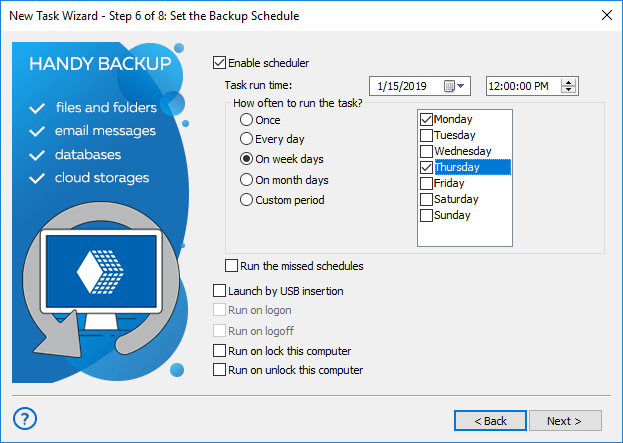
Set your Windows 11 automatic backup according to your preferred schedule. You can choose from a variety of options, including:

One-time Backups
Choose a specific date and time for a single backup.

Routine Backups
Set the task to run every day at a specific time.

Weekly Backups
Select which days of the week to run your backups.

Monthly Backups
Schedule backups for specific days of the month

Custom Intervals
Set backups to run at precise intervals, down to the minute or hour.
Trigger Backups Based on System Events
Trigger backups based on system events, making Windows 11 schedule backup management seamless:

USB Insertion
Start backups automatically when a USB drive is plugged into your PC.

Logon/Logoff
Initiate backups when you log into or out of your system.

Lock/Unlock
Trigger backups when your computer is locked or unlocked.
Pre-Task and Post-Task Scripts
Define tasks before and after your backup process, offering additional automation and flexibility:

Pre-Task Script
Execute a script or application before starting the backup. For instance, you can run a system cleanup or prepare data before backing it up.

Post-Task Script
Run a script or application after the backup completes. This can be useful for actions like sending notifications, syncing data, or even performing a system reboot.
Advanced Backup Customization
For those who need additional flexibility, Handy Backup provides advanced customization options:

Partial Backup Capabilities
Choose between different backup types, such as full backups, incremental backups, or differential backups, to save time and space.

Encryption and Compression
Protect your backup files with strong encryption, including AES-256, and compress them to save storage space.

Multiple Storage Destinations
Back up your data to various locations, including Windows 11 backup to external drives, network storage, cloud or FTP/SFTP servers.
Intelligent Backup Notifications
Stay informed about your backup tasks with Handy Backup's notification system:

Email Alerts
Receive email notifications upon task completion, error occurrences, or scheduled backup events.

Log File Generation
Handy Backup generates log files for each backup task, giving you complete transparency over your backup processes.
Unlock the full potential of your backup strategy with our Windows 11 Backup Software, offering advanced features and effortless automatic backups for ultimate protection.
Recommended Solution
Lifetime license
Handy Backup Professional
Ensure the safety of your data with Handy Backup Professional – the ultimate solution for creating automated backups of your Windows system. Download the 30-day trial now and experience seamless data protection with an intuitive, user-friendly interface.
How to Auto Backup Windows 11 with Handy Backup?
Handy Backup’s Advanced Mode provides a comprehensive set of customization options, enabling you to configure backup tasks exactly as needed. On the step 6, you can apply automation rules to ensure reliable and efficient data protection, including, for example, Windows 11 auto backup to external drive.
In case you need reliable server protection, our Windows Server 2022 Backup Software offers automated and secure backups.
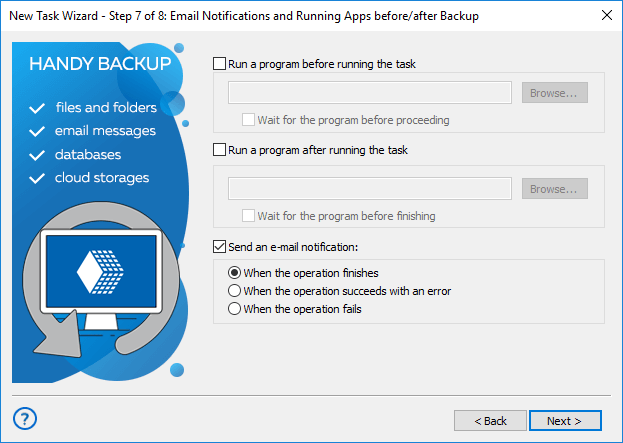
Handy Backup allows you to set up pre- and post-tasks using scripts or executable files. These tasks can be used to automate additional actions, such as preparing the system before a backup or performing specific operations after completion.
Additionally, you can enable email notifications to stay informed about backup progress and results. Receive instant alerts on task completion, errors, or other important updates, ensuring full control over your backup process.
Explore the full range of features of our auto backup software.
Additional Advantages of Efficient Windows 11 Auto Backup

Create a comprehensive Windows 11 Image Backup, including the entire system and configuration settings, ensuring a full recovery in case of disaster.
Windows 11 File Backup allows you to back up specific files and folders, providing granular control over your data protection. Easily restore individual files or entire directories when needed.
Time-stamping adds a date and time to each backup folder, making it easy to track backup versions and recover data from specific timeframes.
Versioning enables you to maintain multiple backup versions of your files, so you can restore to any point in time without the risk of overwriting important data.
Web-Based Interface supports auto-backup features, providing a convenient way to manage your backups remotely from any device with an internet connection within the same network.
Get a 30-day trial to explore the full features of Handy Backup, giving you ample time to test its capabilities before making a decision.
User-friendly interface ensures that anyone, regardless of technical expertise, can set up and manage backups with minimal effort, making it ideal for home and office users alike.
A lifetime license means you pay once for the software and receive ongoing updates and support without any recurring fees, providing peace of mind and long-term protection for your data.
Download Trial
Download the 30-day free trial of Handy Backup and learn how to schedule backup in Windows 11 with ease. Unlock advanced backup features and ensure your data is always protected!