How to set up a weekly full backup and daily change backup?
Many users think that setting up a weekly full backup and daily backup of changes requires separate tasks. In Handy Backup, this scheme can be configured in a single task.
This example is based on a real user scenario: setting up mixed backup with a full backup every Sunday and backup of changes on the remaining days.
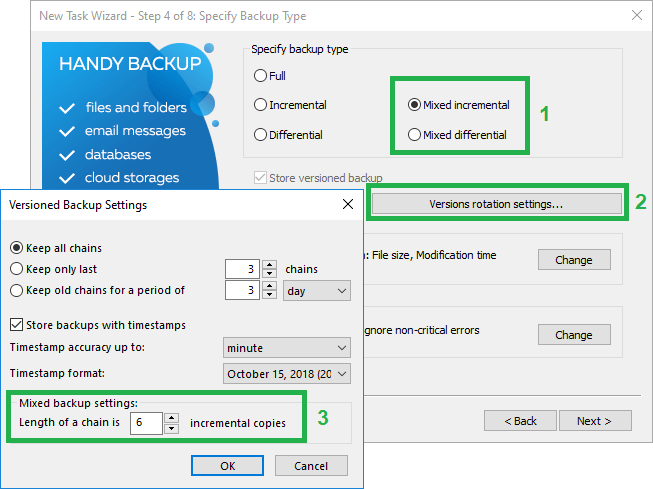
The original problem
You need to configure a mixed backup strategy where a full backup is always performed on Sundays, while incremental or differential backups are created on the remaining days of the week.
The Backup Scenario
I would like to configure Handy Backup to use the following mixed backup schedule:
- Full Backup: Every Sunday
- Incremental Backup: Monday through Saturday
This schedule should repeat every week, with each new week starting with a fresh full backup on Sunday followed by incremental backups on the remaining days.
Could you please explain how to configure this backup strategy correctly in Handy Backup?
Solution
At first glance, this backup strategy appears to be something that can be configured using the task scheduler alone. However, Handy Backup does not provide a scheduling option that allows you to specify full backups on Sundays and incremental or differential backups from Monday through Saturday.
In fact, this backup strategy depends not only on the task schedule but also on the backup chain length used in Mixed Incremental or Mixed Differential mode, as well as on when the first full backup is created.
To ensure that a full backup is always performed on Sunday, schedule the first task run for the nearest Sunday and clear the Run this task now checkbox before saving the task. Otherwise, Handy Backup will create the initial full backup immediately after the task is created, causing the weekly backup cycle to shift.
How to Create This Backup Scheme: Step-by-Step Guide
- Launch Handy Backup and create a new task
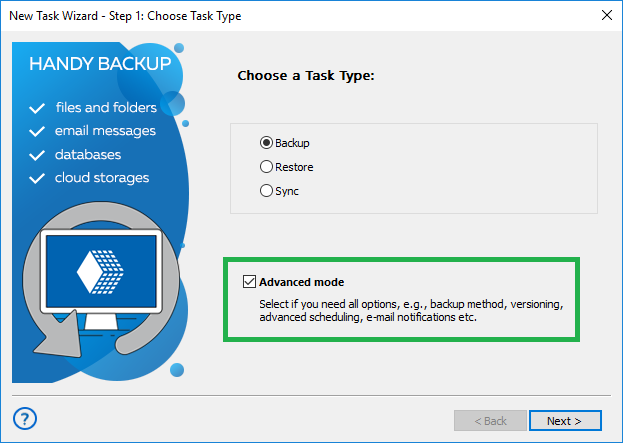
On Step 1, select Create Backup and enable Advanced Mode, as you need to choose a mixed backup type.
- Select the data
On Step 2, select the data you want to back up.
- Select the backup destination
On Step 3, specify where the backups will be stored. You can save them to a local drive, external drive, network folder, NAS, FTP/SFTP server, cloud storage, or another supported destination.
- Select the mixed backup method
On Step 4, choose one of the following methods:
- Mixed Incremental
- Mixed Differential
Then open the Backup Update Options section and set the backup chain length to 6.
With this setting, Handy Backup will run the following cycle:
- one full backup per week, for example on Sunday;
- incremental or differential backups on the remaining days.
- Configure compression and encryption
On Step 5, you can enable compression or encryption if needed. These options are optional and do not affect the weekly backup cycle.
- Configure the schedule
Set the task to run every day at the same time.
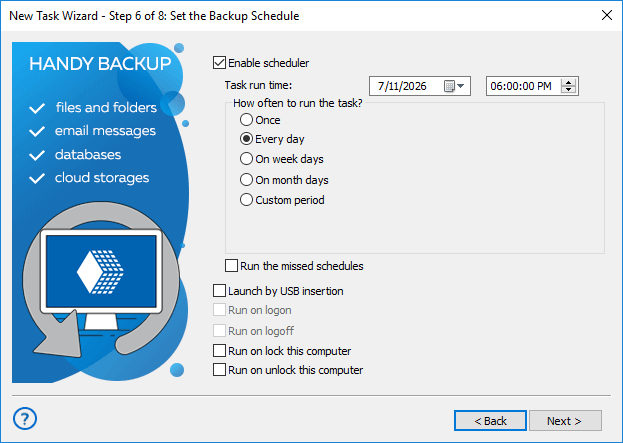
To start the cycle correctly, schedule the first run for the upcoming Sunday. In this case, the first backup in the chain will be full, and the following backups will be incremental or differential.
- Configure actions before and after the task
On Step 7, you can configure external programs, scripts, or commands to run before or after the task. This step is optional.
- Complete the task setup
On the final step, enter a task name.
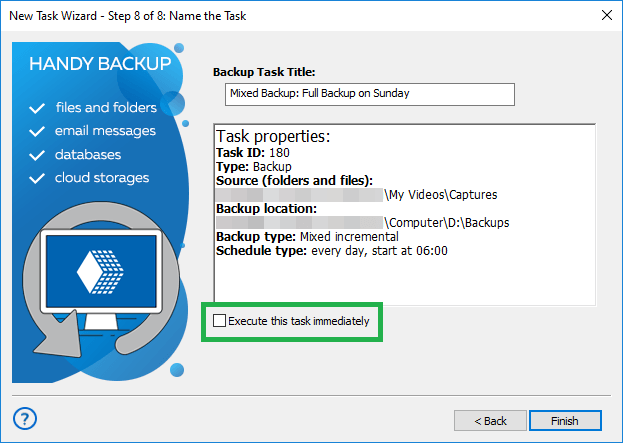
Clear the Execute this task immediately checkbox before saving. If you leave this option enabled, Handy Backup will create a full backup immediately. As a result, the start of the weekly cycle will shift, and future full backups will run on the day the task was created instead of on Sundays.
Result
After the task is saved, Handy Backup will automatically perform backups every day according to the configured schedule. The program will create one full backup every Sunday, followed by incremental or differential backups from Monday through Saturday, automatically repeating the same weekly cycle.
Related Pages: