How to Create File Backups with Timestamps and Restore Data to a Specific Date?
Many users need to restore files not just from the latest backup, but from a specific date when the data was in a known good state. However, without version retention enabled, only the most recent backup is stored.
This guide explains how to configure full backups with timestamps and version history, allowing you to restore data to any chosen day. The example is based on a real user request to recover files from a specific date rather than the most recent backup.
The original problem
Set up daily full file backups to OneDrive cloud storage, saving multiple backup versions to restore data to a specific date.
The Backup Scenario
I create full backups of my files daily in OneDrive cloud storage. I can't figure out how to restore data from a specific date, rather than just the last day?
When creating a restore task, the program only offers the most recent backup. I need to be able to select a backup from a specific date during restore.
Solution
By default, a full backup task does not preserve the history of previous copies, and each new backup replaces the previous one.
To be able to restore data to a specific date, you need to enable the storage of multiple backup versions. In this case, each backup will be saved as a separate version with its own timestamp.
How to enable storing multiple backup versions
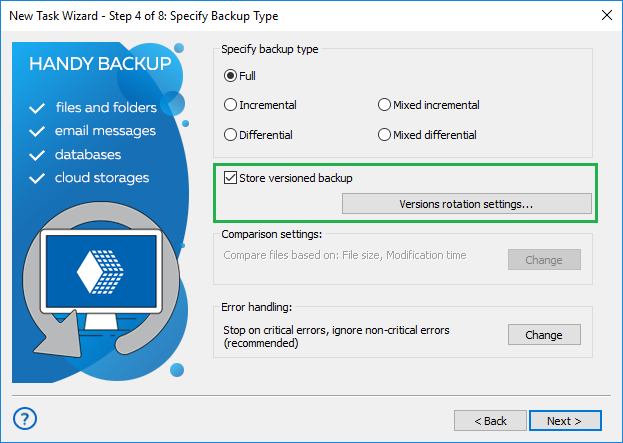
- Go to the task properties by right-clicking the task and selecting "Properties" or pressing Alt+Enter.
- Go to the "How to copy" tab.
- Check the "Versions rotation settings" checkbox.
- If necessary, configure the "Backup update options":
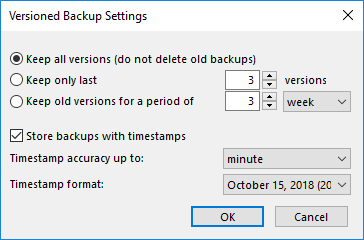
For convenient backup storage, you can also configure backup timestamps. This will allow you to quickly find the desired backup by date and select it during restoration.
- Click "Apply" and "OK".
After that, backup versions (.hbi) corresponding to different task execution dates will be stored in the repository.
How to restore data to the desired date
After enabling multiple version storage and performing several backups, Handy Backup will allow you to select the desired date. When creating a restore task, the program will display a list of available backup versions. Select the copy with the desired date and start the restoration.
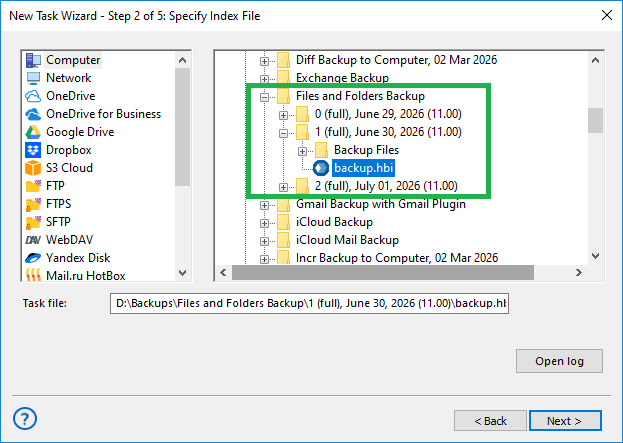
This method allows you to revert data to the state on a specific day, even if the backup task has been run several more times since then.
Related pages: