Backup to SFTP Software - Handy Backup
Backup to SFTP is the most reliable method of data protection, as it involves a remote SFTP backup server (which eliminates risks of "local" data loss) and secure network connection. Handy Backup is an SFTP backup software that comes with many features that will provide the best experience whenever you need to backup to SFTP servers.





Some Facts about SFTP Backup
Designed by IETF, SFTP provides secure file transfer and manipulation facilities over the secure shell (SSH) protocol which makes it perfect for sensitive data backups.
While transferring data to a remote location during FTP backup or cloud backup, these are the different threats to data consistency and security, such as sniffers, hacking attempts and direct data interception.
To avoid theft or garbling of data on the way to its destination, you need to use a secure data transferring protocol. This is when backing up to SFTP is a good choice.
Benefits of SFTP Backup
There are two primary benefits of backup to SFTP:
- Never transferring passwords as plain text. This prevents hacker attacks and the use of sniffers, so you may be confident about accessing your data on an SFTP backup server for you only.
- Encrypting your data while transferring, which complicates any attempts of interception enormously. This means that you will be able to restore backup from SFTP intact if something happens to the original data.

Testimonials About SFTP Backup Software by Handy Backup

Recommended Solution
Lifetime license

Handy Backup Professional
Support for SFTP backup is available in Professional edition. You can also use it with basic edition Standard if you supplement it with the SFTP Backup plug-in. Free 30-days trial version!
Backup from SFTP: Crucial Possibilities
There are two primary benefits of backup to SFTP:
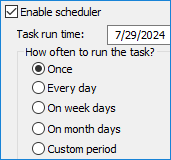
- Absolutely automated backups . The program has a very powerful backup scheduler, which allows you to automate all related tasks. All you need to do is specify an appropriate schedule, and Handy Backup will implement all features for accessing SFTP backup server automatically.
- Variety of data to back up. Do you want to backup Exchange data, or make an Outlook backup? Do you have any specific files and folders that require being backed up or you want to make a complete HDD image backup? Handy Backup will make it all for you.
- Security of your business. In case of corruption or loss of the original data, restoration from an SFTP server will be even easier than backing up! You will only need to click a single button, and the program will automatically locate broken data and restore it to the working state.
For a full list of features, please refer to backup features of our software.
How to Backup to SFTP with Handy Backup
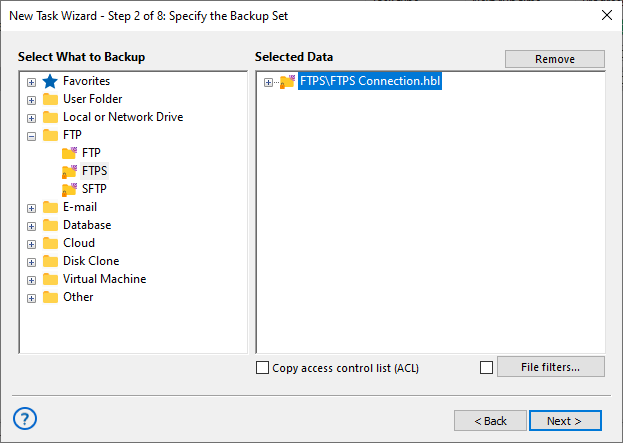
The process of creating an SFTP backup task is quite simple. Just make a new task, select backup task type, and then choose an SFTP plug-in from "FTP" group on Step 2. If you still have no connection for a particular SFTP server, please click "Create a connection…" and fill the fields in a new connection dialog.
Notes: Configuring and Using Backup from SFTP Servers
Here are some tips for configuring SFTP connections:
- Always set up a correct delay between connection attempts to prevent "hammering" (continuous unsuccessful attempts to connect a disabled SFTP server).
- Test your connections each time after changing a configuration, to avoid losing your backup activities due to misconnects or configuration errors.
- Use internal encryption and compression in addition to a secure transferring protocol, for preventing crucial data from accidental theft.

Where to Backup from SFTP

In addition to SFTP backup storage, Handy Backup provides many other data vaults, including local and external drives, popular cloud services (Amazon S3, Box, Dropbox, Google Drive and other), S3 and WebDAV cloud interfaces, FTP and FTPS servers, NAS storage, data servers, mapped drives etc.
Video Instruction for FTP Backup: SFTP Is No More Difficult
In the next video, we will teach how to backup data to common FTP servers. Please note that for SFTP backup, the only difference besides selecting the "SFTP" plug-in is a slight change in advanced connection settings, shown here.
Note: This video illustrates FTP backup. For backup from SFTP, you can use most of these instructions, except other configuration principles. The main difference is the "Authentication" tab in a connection dialog, where you must provide private and public keys to an SFTP connection. You can learn more about SFTP settings from the User Manual.
 Download Trial
Backup to SFTP servers with Handy Backup securing your data while transferring it!