Bluehost Email Backup Solution
Handy Backup provides a flexible Bluehost email backup solution for Professional Email mailboxes accessible through IMAP. Create automatic copies of Bluehost email, store messages as standard EML files, and keep backups on a local drive, NAS, remote server, or supported cloud storage.
With Bluehost email backup software, you can choose where mailbox copies are stored, configure your own schedule, maintain multiple versions, and keep business correspondence separately from the original Bluehost account.
 Download Trial





Back Up Bluehost Professional Email Through IMAP
Bluehost Professional Email backup can be configured through the IMAP connection provided for Titan-based mailboxes. Handy Backup connects to the incoming mail server and copies selected mailbox folders without requiring Outlook, Thunderbird, or another desktop email client to store the original messages first.
Bluehost uses secure IMAP access for Professional Email and requires third-party application access to be enabled for the mailbox. Once the connection is available, Handy Backup can create scheduled email copies and save them to storage selected independently from Bluehost.

Direct IMAP Backup
Connect directly to Bluehost Professional Email through IMAP and include the required mail folders in an automated backup task.

Flexible Automation
Run Bluehost email backup daily, weekly, monthly, or according to a custom schedule instead of relying on manual mailbox exports.

Your Own Storage
Keep mailbox copies on a PC, external drive, NAS, remote server, or cloud rather than only inside the email environment.
Why Keep an Independent Backup?

Separate Mail from the Original Account
A separate Bluehost email backup gives you another copy of important correspondence outside the active mailbox. The backup destination remains independent from the Bluehost webmail account and can be selected according to your own storage policy.

Keep Individual Messages as EML
Handy Backup stores messages as standard EML files, preserving email content, headers, and attachments together. Individual emails remain accessible as regular files instead of being available only through a hosted backup interface.

Choose Your Own Backup Schedule
An automatic Bluehost email backup task can follow a schedule that matches mailbox activity. Run copies daily, weekly, monthly, or at another interval instead of using one predefined backup frequency.

Manage Several Business Mailboxes
Create independent tasks for sales, support, billing, personal, and other Bluehost mailboxes. Each task can use its own account connection, destination, schedule, encryption options, and stored backup versions.
Bluehost Built-In Email Backup vs Handy Backup
Bluehost Professional Email includes its own backup capabilities with selected plans. Handy Backup serves a different use case: it creates a software-managed copy through IMAP and lets you select where that copy is stored, how often it is created, and how individual messages are retained.
| Backup Capability | Bluehost | Handy Backup |
|---|---|---|
| Primary environment | Professional Email Ultra | IMAP-accessible Professional Email |
| Backup frequency | Automatic daily backup | User-defined schedule |
| Storage | 50 GB storage currently listed with Professional Email Ultra | User-selected storage local, external, NAS, remote, or cloud |
| Local or external-drive copy | Not presented as a selectable backup destination | Yes |
| Individual EML files | File format is not specified as an export format | Yes messages are stored as standard EML files |
| Backup other computer data | Email-focused service | Yes within the same backup application |
Where Can You Store a Bluehost Email Backup?
A Bluehost email backup solution does not have to keep its copies inside another mailbox service. Handy Backup lets you select a destination according to whether you need fast local access, centralized network storage, an offsite copy, or a combination of different storage locations.

Computer, External Drive, or NAS
Back up Bluehost email to a PC, internal disk, external HDD or SSD, USB storage, network folder, or NAS. Local storage is useful when you want direct access to archived EML files without depending on an online mailbox.

Remote Server or Cloud Storage
Send Bluehost mailbox copies to FTP, SFTP, FTPS, WebDAV, Amazon S3, S3-compatible storage, Google Drive, OneDrive, Dropbox, and other supported destinations for an additional offsite copy.
Keep Bluehost Email on Storage You Control
A separate Bluehost webmail backup is useful when important messages should remain available beyond the active mailbox and independently from the email service where they originated.

Local copy: keep messages on a computer or external disk for straightforward offline access to stored EML files.
Network storage: maintain centralized mailbox archives on a NAS or shared storage already used by your organization.
Offsite storage: send another copy to remote or cloud storage when the backup should be separated from local infrastructure.

Bluehost Website Backup Is Not the Same as Email Backup

Bluehost Website Backup
Bluehost describes its standard website backup as a site-level backup. Website files and related site data are handled separately, and Bluehost specifically notes that email data is not included in this type of backup.
Bluehost Professional Email Backup
Business mail requires a separate backup workflow. Handy Backup connects directly to an IMAP-accessible Professional Email mailbox, allowing selected messages and folders to be copied independently from website backups.
Handy Backup Features
Scheduled Backup
Automate Bluehost email backup according to mailbox activity. Use daily, weekly, monthly, or custom schedules instead of creating email exports manually.

Backup Versions
Maintain multiple stored versions when required, giving you additional recovery points if a deleted or changed message is discovered after a newer backup has run.

AES Encryption
Protect stored email copies with AES-128 or AES-256 encryption when mailbox data includes business correspondence, documents, invoices, or other sensitive information.

Restore and Migration
Retain mailbox copies for recovery or migration scenarios. Saved email can remain independent from the original account and be used when individual messages are needed later.
Recommended Solution
Lifetime license

Bluehost Email Backup Solution
Handy Backup Standard automates Bluehost Professional Email backups via IMAP and lets you store mailbox copies locally, on NAS, or in the cloud.
How to Back Up Bluehost Email with Handy Backup
- Enable third-party access. In Bluehost Professional Email, allow Titan to connect with external applications before creating the backup connection.
- Create a backup task. Open Handy Backup and start a new Backup task for your Bluehost mailbox.
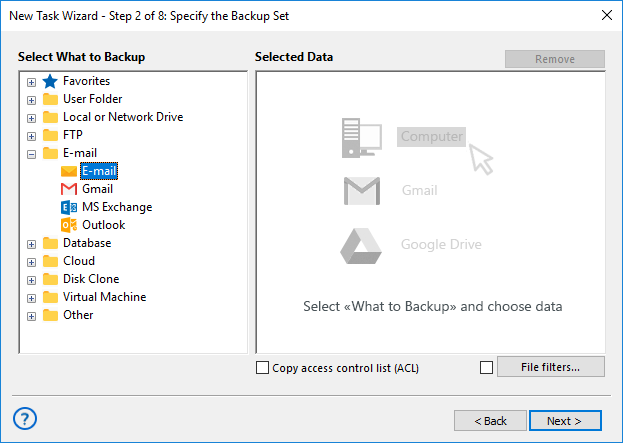
- Select the E-mail plug-in. At the data selection step, choose the E-mail plug-in from the E-mail group.
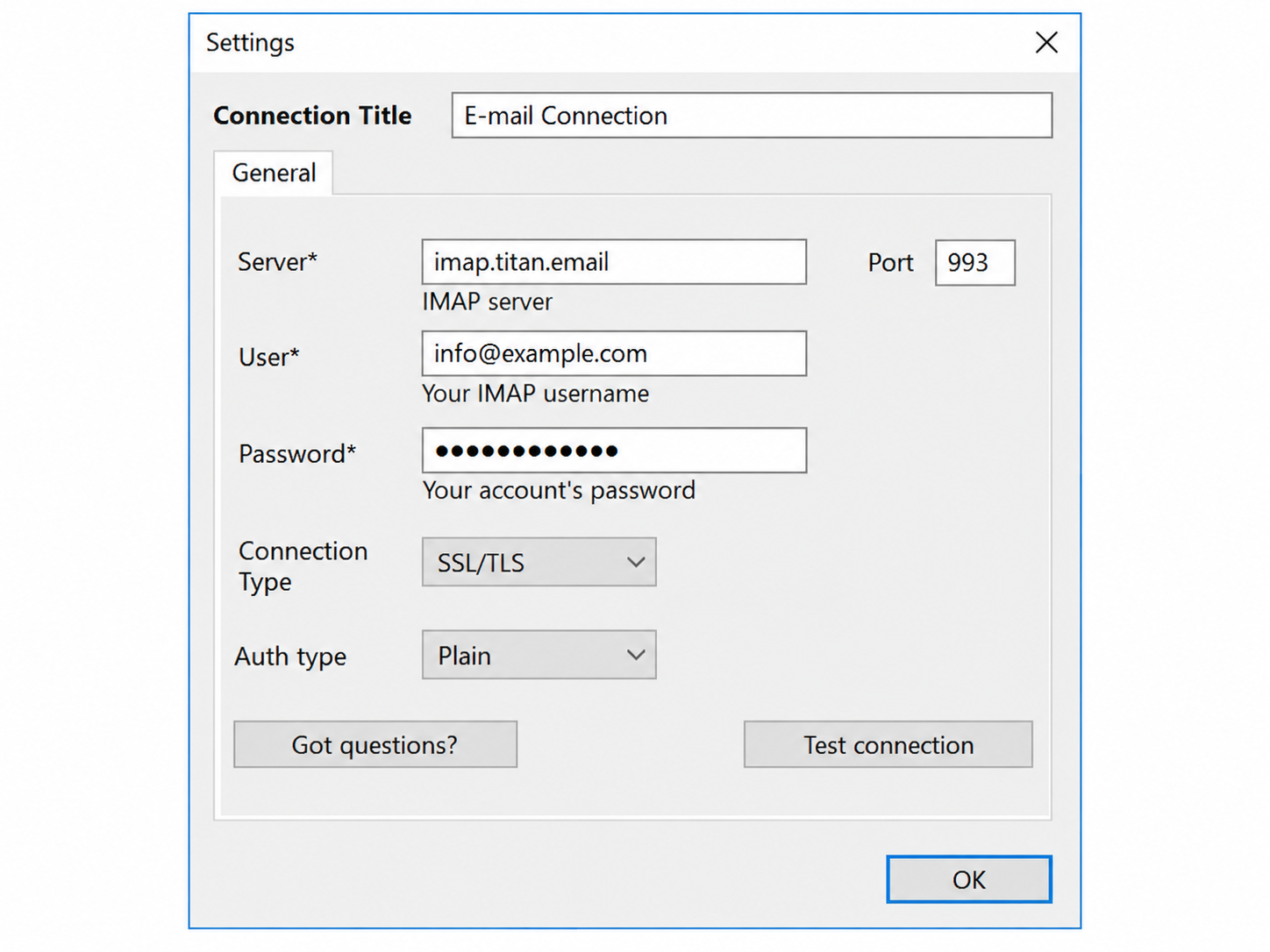
- Create the mailbox connection. Enter the complete Bluehost Professional Email address, mailbox password, and the IMAP server assigned to your account.
Standard Bluehost IMAP settings:
IMAP server: imap.titan.email
Port: 993
Security: SSL/TLS
Username: your complete email address
- Select the mailbox data. Choose the folders and messages you want the Bluehost email backup task to include.
- Choose a destination. Select a computer folder, external drive, NAS, remote server, cloud service, or another supported storage location.
- Configure automation. Set the required schedule and configure backup versions, encryption, notifications, and other task options.
- Finish the task. Start the first backup immediately or allow Handy Backup to run it automatically according to the selected schedule.
Access Bluehost Email Backups as EML Files
Handy Backup saves individual email messages in EML format. Message text, mail headers, and attachments remain together, which makes a Bluehost email archive easier to access independently from the original webmail account.
Because the backup consists of standard message files, selected emails can be retained separately instead of requiring access through one provider-specific backup interface.
Preserve Messages with Attachments
Attachments stay with the email inside its EML file together with message content and headers. This helps preserve correspondence in a practical, recognizable format.

Use Mail Copies Independently
A local backup can remain available outside webmail for archived customer conversations, orders, invoices, support correspondence, and other messages retained for later use.
One Backup Application for Bluehost Email and Other Data
Bluehost Professional Email
Back up IMAP-accessible Bluehost mailboxes and maintain copies separately from the active webmail environment and its built-in storage.
Files and Business Data
Use the same application for documents, project folders, application data, and other business files stored on Windows computers and servers.
Cloud and Remote Storage
Combine email protection with local, network, remote, database, and cloud backup workflows instead of separate utilities for each data source.
FAQ About Bluehost Email Backup Software
How can I back up Bluehost email?
For Bluehost Professional Email with third-party access enabled, Handy Backup can connect through IMAP and copy selected mailbox folders automatically. The resulting email backup can be stored on a computer, external drive, NAS, remote server, or supported cloud destination.
Can I back up Bluehost email to my computer?
Yes. Handy Backup can save messages from an IMAP-accessible Bluehost Professional Email mailbox to a folder on your Windows computer. You can also select an external HDD, SSD, or other supported local storage as the destination.
What are the Bluehost Professional Email IMAP settings?
Bluehost currently specifies imap.titan.email as the standard incoming IMAP server for Professional Email, using port 993 with SSL/TLS. For users in the EU region, Bluehost also publishes imap0101.titan.email on port 993 with SSL/TLS. Use the settings assigned to your mailbox if they differ.
Does Bluehost already include email backup?
Bluehost currently lists email backup storage with Professional Email Ultra, including automatic daily backups and 50 GB of backup storage. Handy Backup provides a different approach by creating an independent IMAP-based copy and allowing you to choose the backup destination and schedule.
Does a Bluehost website backup include email?
Not in Bluehost's standard site-level backup workflow. Bluehost states that email data is not included in its basic website backups, so website data and Professional Email should be treated as separate backup scenarios.
What format does Handy Backup use for Bluehost email backups?
Handy Backup stores individual email messages as standard EML files. Message content, headers, and attachments are preserved together, allowing stored mail to remain accessible independently from the Bluehost webmail interface.
Can I back up several Bluehost email accounts?
Yes. Create separate backup tasks for multiple Bluehost Professional Email mailboxes. Each task can use its own mailbox credentials, destination, schedule, encryption configuration, and backup version settings.
Can I save a Bluehost email backup to NAS or cloud storage?
Yes. Handy Backup supports network folders and NAS devices as well as remote and cloud destinations. This allows you to keep Bluehost email copies outside the original mailbox and choose a storage location that matches your backup workflow.