Kodi Backup and Restore Addon
Kodi backup is the process of automatically saving TV shows, movies, and video data to various local drives, external USB storage, cloud services, and FTP servers. With Handy Backup, you can enhance this process by also backing up Kodi settings to any of these storage options, including saving a Kodi backup to Google Drive.
Download the free trial version of Handy Backup now to explore all its powerful features. Try it today and experience the convenience of Kodi backup and restore at your fingertips.
 Download Trial

Benefits of Using Handy Backup for Kodi Backup and Restore
Backup your Kodi TV (formerly XBMC) with ease and security by creating a copy of your video library and settings to store in a safe location. While Kodi offers a basic Kodi backup addon, Handy Backup takes it to the next level with a comprehensive, advanced solution for securely saving and effortlessly restoring your Kodi content. Compatible with Windows, Linux, and even Raspberry Pi, Handy Backup ensures that your Kodi directories are fully protected, providing peace of mind and hassle-free recovery whenever you need it.

Automate Your Backups
Automate your Kodi backup with Handy Backup by scheduling them at precise intervals, whether every few minutes, days, weeks, or even months. Take the hassle out of manual backup management and ensure your Kodi data is regularly protected without you having to worry about it.

Use Native Format Backups
Enjoy quick and straightforward restores in native format, accessing your files directly without the need for decompression or format changes. This method guarantees that your backups remain intact and easily accessible, so you can recover Kodi data swiftly whenever needed.

Ensure Data Security with Encryption
Protect your Kodi data with advanced encryption algorithms like AES-256, AES-128, or Blowfish. Handy Backup ensures that your data remains secure while backed up, preventing unauthorized access and keeping your sensitive information safe from prying eyes.

Perform Partial Backups
Optimize your backup process by using partial backups. Choose from incremental, differential, or a combined full/differential cycle to back up only what has changed since the last backup, saving time and storage space while ensuring your Kodi data is always up-to-date.

Save Space with ZIP Compression
Save storage space by using ZIP compression for your backups. Handy Backup allows you to backup Kodi data in a highly efficient compressed format, reducing file sizes while maintaining data integrity, so you can store more backups in less space.

Choose from Multiple Storage Options
Have the flexibility to store your Kodi backup wherever suits you best. Whether you prefer local drives, cloud storage, or FTP servers, Handy Backup lets you backup Kodi data to multiple storage options, ensuring your backups are always accessible and secure.

Automate Backups with Events
Automate Kodi backup and restore process based on specific events, such as connecting an external USB drive or other triggers. With Handy Backup, you can ensure your Kodi data is backed up every time an event occurs, removing the need for manual initiation and providing an extra layer of convenience.

Enjoy the Convenience of Time-Stamped Backups
Maintain a complete backup history with time-stamped backups. Handy Backup allows you to keep a pre-defined number of backup versions, so you can always restore your Kodi data to an earlier point, ensuring you never lose important configurations or media.
Recommended Solution
Lifetime license
Handy Backup Standard
The Standard Edition, designed for home users, offers a complete set of powerful tools and features, enabling you to effortlessly backup Kodi data to your Google Drive, an external USB flash drive, or any storage solution of your choice. Get started today with a free 30-day trial and experience the convenience that comes with automated Kodi backup!
How to Backup Kodi from a Local Drive with Handy Backup
To backup Kodi, begin by locating the folder where your Kodi app stores its data.
For Windows backup, the folder is located at:
%APPDATA%\kodi\userdata

For Linux backup, the default location is:
~/.kodi/userdata/

Note: These folders are hidden by default! Handy Backup can access this directory, but you won’t be able to locate it using a standard file browser like Windows Explorer unless you enable the option to show hidden files and folders.
Ready to safeguard your Kodi data? Follow these straightforward steps to learn how to backup Kodi effortlessly and securely:
- Launch Handy Backup. Create a new task by clicking the button on the main control panel, using the menu, or by pressing Ctrl+N simultaneously.
- In Step 1, choose the backup task type and click "Next" to proceed to Step 2.
- In Step 2, open the "Local or Network Drive" section and select the "Computer" plugin.
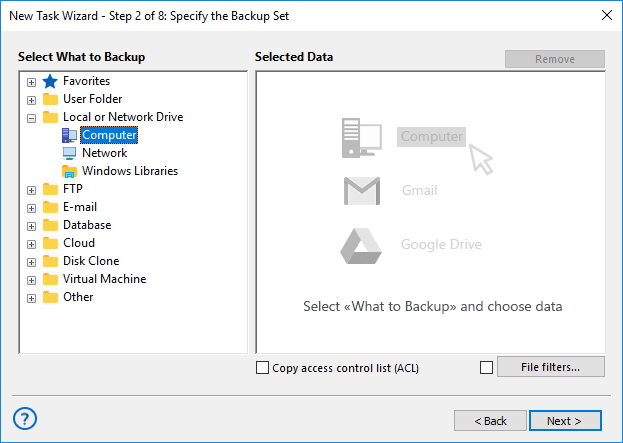
- Browse the list of drives and folders to locate the folder containing Kodi libraries, enabling you to perform a seamless application backup.
- Check the box next to the name of this folder.
- Click "OK" to return to Step 2, then click "Next" to proceed.
- Customize your backup task as desired, following the instructions in the User Manual.
Kodi Backup for Other Devices
For devices like Android mobile phones, Raspberry Pi computers, and TV stations running macOS, Handy Backup offers alternative methods for Kodi backup. These include connecting the device to a computer as a USB drive or using a network-shared drive.

How to Restore Kodi Data
This process is the reverse of creating a Kodi backup. To restore Kodi, create a new task and select the restoration task type in Step 1. Then, follow the steps outlined below.
- In Step 2, open your Kodi backup storage and locate the file named backup.hbi.
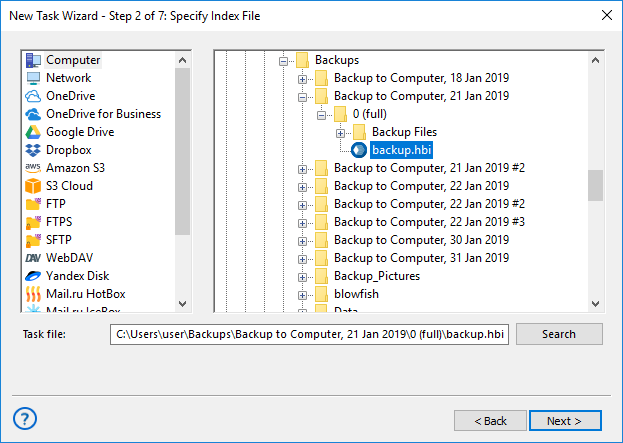
- Double-click the file name. A restoration dialog will appear.
- By default, when you click "OK," the program will restore all files to their original location—the same folder from which the Kodi backup was made.
- If you want to change the restoration location, click the "Change Location" button and select a new location in the dialog that appears.
- After confirming the restore location, proceed with creating your restoration task according to the User Manual.
Download Trial
Try Handy Backup as a powerful and user-friendly Kodi backup solution by downloading the 30-day free trial of
Handy Backup, complete with all addons and features, right now!