WhatsApp Backup Tool
WhatsApp Backup Software enables you to automatically backup your chats, ensuring your important conversations are always safe and secure. Since WhatsApp lacks comprehensive built-in backup tools, using third-party software is recommended. Handy Backup helps you protect your messages—whether they’re cherished memories or vital business conversations—shielding them from different risks.
Start your 30-day free trial today and experience the ease of securing your WhatsApp messages. Don’t leave your important chats exposed—secure them with Handy Backup, the trusted choice for WhatsApp Backup, and enjoy peace of mind knowing your conversations are fully protected!

Why Backup WhatsApp Messages?



Data Loss Prevention
Backing up ensures you don't lose important conversations due to accidental deletion, app crashes, or device issues.
Security and Privacy
Storing backups locally or in a secure location reduces reliance on cloud services, keeping your chats private and protected.
Compliance and Record Keeping
For business users, Whatsapp backup ensures compliance with legal or regulatory requirements while preserving important records.



Seamless Device Migration
Whatsapp chat backup makes it easy to securely transfer all your messages and media when upgrading or switching to a new device.
Peace of Mind
Knowing your messages and memories are safely stored allows you to focus on what matters without fear of losing data.
Limitations of Built-In Tools
When managing numerous chats and large amounts of data, built-in tools may become slow or unreliable, making third-party solutions a better choice.
The Advantages of Handy Backup Over Built-in Backup Tools

More Storage Options
WhatsApp for Android relies on Google Drive for backups, which can limit your storage capacity (only 15GB free). Our Whatsapp backup software isn’t bound by this limitation and lets you back up to any storage you choose, including:
- local and external drives,
- FTP/SFTP/FTPS servers,
- NAS devices,
- cloud services like Dropbox, Google Drive, Amazon S3, Microsoft OneDrive, and others.

Enhanced Security Features
Handy Backup includes advanced security features to ensure your backups are safe. When using Google Drive, the security of your data depends on Google, and there’s no option to encrypt the data using WhatsApp's settings. Handy Backup offers an additional layer of protection for your backups, with the following encryption protocols:
- AES 256,
- AES 128
- Blowfish

Handling Large Files
When dealing with large files, built-in tools may lag or become unreliable, especially when backing up numerous chats and media. Third-party software, like Handy Backup, is better equipped to handle large amounts of data without performance issues.

Migration Between Devices
Our Whatsapp backup tool allows you to back up your chats and data on one device and easily restore them on another, including the ability to manage multiple devices simultaneously. In contrast, WhatsApp's migration process can be more limited and inconvenient, especially if you're switching to a new phone with a different Google account.
Additional Advantages of Efficient WhatsApp Backup Tool

Incremental, differential, and mixed backups provide flexibility by backing up only the changes made, saving time and space.
Versioning of backup datasets lets you keep multiple versions, so you can easily restore a specific version of your data if needed.
Time-stamping of Whatsapp backup folders helps organize your backups, making it clear when each backup was made.
Ability to run programs before or after a Whatsapp backup task automates additional steps.
Email notifications and detailed logs keep you informed of your backup status, helping you stay on top of your backup tasks.
Enjoy a 30-day trial to explore all features of Handy Backup, giving you the chance to test the software before committing.
User-friendly interface makes it easy for anyone to set up and manage backups, even without prior technical knowledge.
A lifetime license means you pay once for the software and receive ongoing updates and support without recurring fees.
Recommended Solution
Lifetime license
Home Office Backup Solution
The Standard Edition allows you to backup WhatsApp chat to local drives, cloud services, external or mapped drives, and FTP servers, offering all the essential options for reliable backups. Experience the power of the WhatsApp Backup Tool with a free 30-day trial!
Where to Find the File Containing Messages and Media on Android
To backup WhatsApp messages and media effortlessly with our WhatsApp Backup Software, simply locate the correct file on your Android device. With the introduction of Android 11 and higher, the directory structure for WhatsApp data has changed. Follow these steps to find and backup WhatsApp files:
Locate the WhatsApp Data File on Android
WhatsApp stores its local backup files in the following directory:
Phone/Android/media/com.whatsapp/WhatsApp/Databases
- Ensure that WhatsApp has been installed and you’ve verified your account to create this directory.
- Navigate to this directory using your phone’s file manager or by connecting your phone to a PC as an external drive.
- Look for files like msgstore.db.crypt14, which contain your chat history.
How to Backup WhatsApp with Handy Backup
Let us demonstrate a strategy for automatic back up of your WhatsApp messages using a smartphone connected to your PC as an external USB drive. Additionally, we will set up a backup task to store WhatsApp data online in Google Drive, similar to the native WhatsApp backup utility.
Follow the steps below to set up this task:
- Connect your phone to the PC and ensure Windows recognizes it as an external drive.
- Open Handy Backup. Create a new task by pressing Ctrl+N or clicking the "New Task" button.
- Select "Backup task" in Step 1 and proceed.
- In Step 2, click the "File filters..." button to open the file mask input dialog.
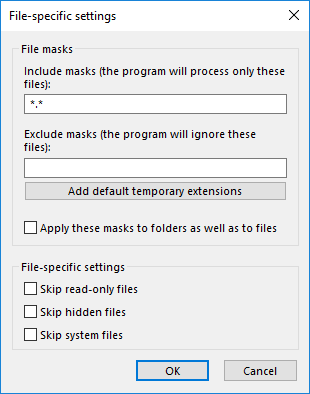
- In the dialog window, enter the following mask to include WhatsApp data: `*.crypt14` This filter ensures only chat backups are selected.
- Click OK. Then, select the "Computer" plugin from the "Local or Network Drive" group.
- Locate your phone in the list of external drives (this could be internal memory or an SD card).
- Select the phone directory where the WhatsApp files are stored (see above for the exact path).
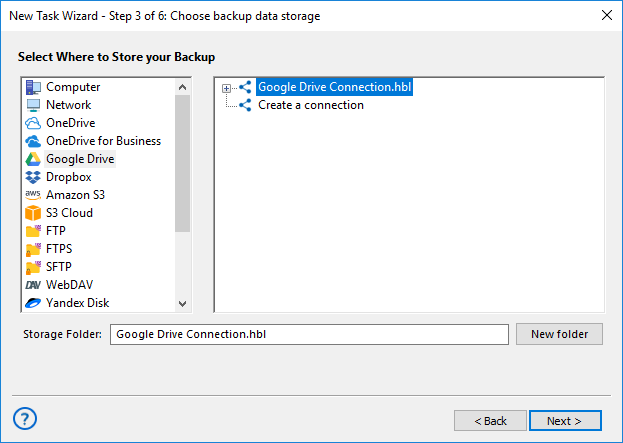
- In Step 3, choose "Google Drive" as the backup destination.
- Click "New configuration" and establish a connection to your Google Drive account by entering your credentials. Note: Data exchange occurs directly between you and Google’s servers; Handy Backup does not store any sensitive data.
- Select the newly connected Google Drive account as the storage location for your Whatsapp chat backup.
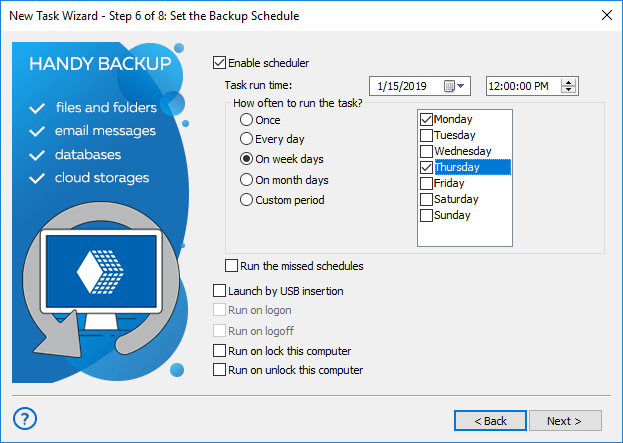
- Continue with Steps 4 and 5 to configure advanced options, such as compression, encryption, or scheduling. Refer to the User Manual for details.
- In Step 6, enable the option "Launch on USB insertion" to automate backups whenever the phone is connected.
- Skip Step 7 if you don’t require external programs to run before or after the Whatsapp backup task.
- Name your task and complete the wizard.
Congratulations! Your task is now set up to automatically backup WhatsApp messages and chat data every time your smartphone is connected to the computer, regardless of the USB port used.
Note: This method can also be adapted for simpler tasks, such as scheduling regular intervals to backup WhatsApp chat or saving the backup to a local disk instead of Google Drive.
Restore WhatsApp Backup
To restore WhatsApp data backed up using Handy Backup, locate the backup file stored on your chosen storage medium, such as Google Drive or local storage. Transfer the file to your Android device, ensuring it is placed in the directory required by WhatsApp:
Phone/Android/media/com.whatsapp/WhatsApp/Databases
Once the backup file is in the correct location, reinstall WhatsApp and proceed with the verification process. During setup, WhatsApp will detect the backup and prompt you to restore your messages and media. Confirm the restoration, and your chats and files will be successfully recovered.
Manual Restoration
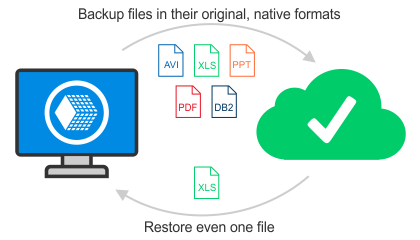
If you didn't encrypt or compress the backup during creation, our Whatsapp backup software allows you to manually restore files in native format, which can be useful when there are issues with automatic restoration through WhatsApp.
 Download Trial
Back up and restore your WhatsApp effortlessly with Handy Backup, the ultimate WhatsApp Backup Tool!
To learn more, download the latest version of Handy Backup and enjoy a completely free 30-day trial!