Backup Errors
Updated on August 17, 2026
Applies to: Handy Backup
What to do if the error "Invalid descriptor (0x00000006)" occurs?

The error 0x00000006 ("Invalid descriptor") appears sometimes during backing up to OneDrive and Dropbox*.
If you see the error "Invalid descriptor (0x00000006)", you should specify a temporary folder which has enough free space for backup. To change your temporary folder you should do the following:
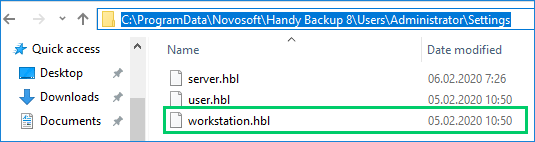
- Go to the way
- For Handy Backup Version 8 -
C:\ProgramData\Novosoft\Handy Backup 8\Users\%UserName%\Settings;
- For Handy Backup Version 7 -
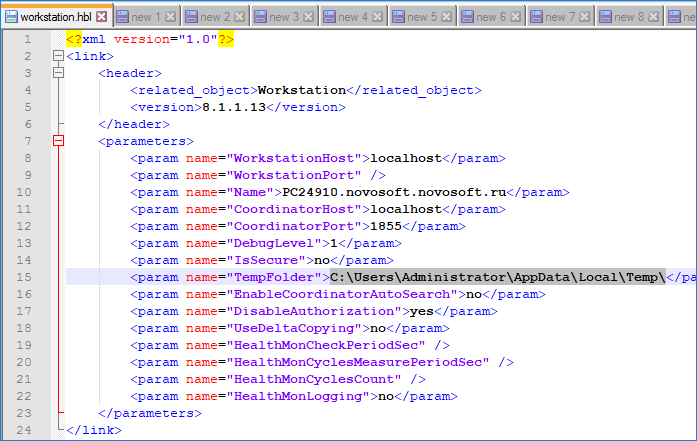
C:\Users\%Username%\AppData\Roaming\Novosoft\Handy Backup 7\Settings\Services; - Open the workstation configuration file workstation.hbl;
- Edit the following parameter
<param name="TempFolder">path_to_your_temporary_folder</param>
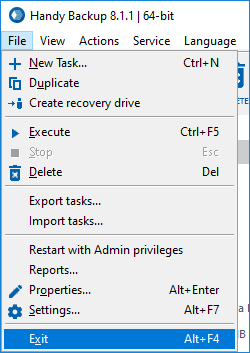
- When you complete, save the file workstation.hbl and quit Handy Backup by using the main menu ("File" -> "Exit"), or just by pressing the key combo Alt+F4.
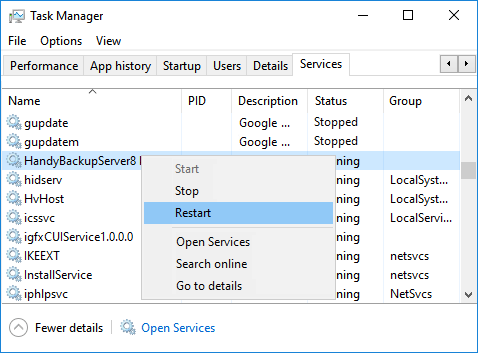
If you run Handy Backup as Windows service, then you need also to restart the service by using the Windows Task Manager.
If you still have the same error after all operations described above, please contact our tech support by an email: [email protected].
* Caution! If the error 6 (“The handle is invalid”) emerges during backing up to another storage than Dropbox,OneDrive or Yandex Disk, then the cause of this error can be something different than described above.
Recovering Damaged File kernelbase.dll
Sometimes, Windows signals on error linked to a dynamic library called kernelbase.dll (this library links a Windows kernel with all other DLL libraries) when running Handy Backup. In most cases, this error appears after updating Windows. Here we are telling about how to repair damaged kernelbase.dll. This simple action is not related to Handy Backup and can be useful in many situations where kernelbase.dll is a source of errors or instability.
Why an "appcrash" Error Appears with Damaged kernelbase.dll?
An application crash caused by damaged kernelbase is not a problem of Handy Backup but a Windows system error. It has many potential causes, from some virus to incorrect Windows update. However, you can fix this error manually, without re-installing an entire Windows or calling for assistance of tech support.
How to Fix kernelbase.dll Problem?
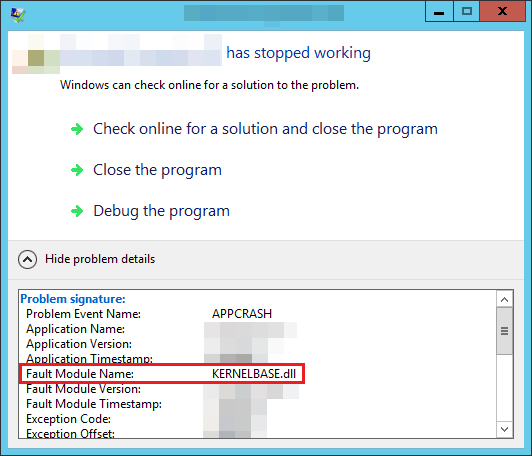
If you receive an application error (APPCRASH) message or a notification about stopping the IPIXERPWIN (see a picture below) with a link to KERNELBASE.DLL as a source of an error, then you can use some methods to fix a problem.
First Method: Scan and Fix
Please use the next instruction:
- Click "Start" on a Windows control panel.
- In the "Standard" program sub-section right-click onto the "Command Line" application and run it as an administrator.
Caveat! You can do all next actions efficiently only if you are running a command line as a system administrator of this machine!
- Enter a command string: sfc/scannow.
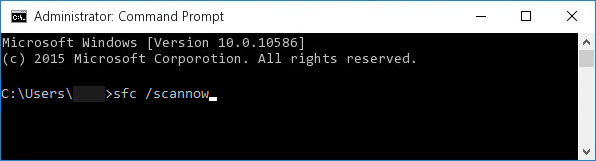
- Now follow the appearing instruction step by step. When Windows will complete a scanning process, the kernelbase.dll error must disappear.
Second Method: Using "Surgical Transplantation"
This can be a bit more difficult than the previous action. Find a computer with just the same Windows edition that you have (regarding matters of version, service pack and bit depth), download a kernelbase.dll on a USB flash drive from it, and then move it to an appropriate folder on your PC.
- Open in the "Start" menu the "Computer" section and click onto the "Properties" tab.
- Read and learn which Windows version and service pack you are using, as well as if your system is 32-bit or 64-bit.
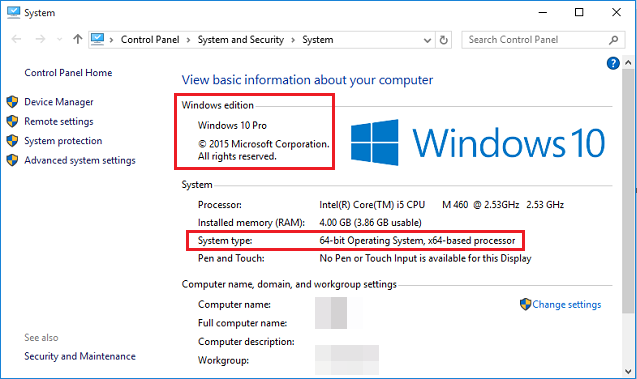
- Find a machine with just the same parameters of Windows installed on it.
- On that machine, open the folder C:\Windows\System32 and find the kernelbase.dll file. Copy this file onto a flash unit or an external USB drive.
- Move a file into the C:\Windows\System32 folder on your computer.
- Run a command-line application as an administrator (see above).
- Enter and execute the next command line:
regsvr32 C:\windows\system32\kernelbase.dll
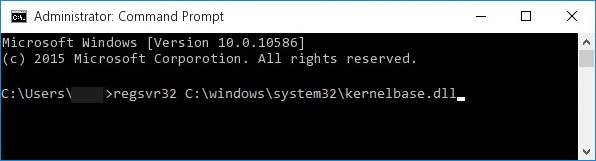
This move will register your transferred library in your copy of Windows. After successful registering a library, an error must disappear.
Other Methods
To avoid an "appcrash" error, you can restore your copy of Windows from system backup, force a system update or download an appropriate version of kernelbase.dll from some trusted source in the Internet.
Security Measures After Re-Installing kernelbase.dll
Before and after changing the kernelbase file, we are strongly recommending scanning your system on viruses, as well as making a system backup and copying all crucial data from your machine to some secure storage.
We hope that this brief instruction can be helpful if you will encounter a kernelbase.dll error and will want to fix it by yourself. If you still have questions, please send us at [email protected] a letter about topics related to re-installing a kernelbase.dll library.
What to Do with an “Access Denied” Error during Backup Process?
If you see an "Access denied" error message during the process of backup, you should run Handy Backup as an administrator with full elevated rights and privileges in Windows. You can do this by right clicking on the program′s shortcut and then on "Run as administrator".
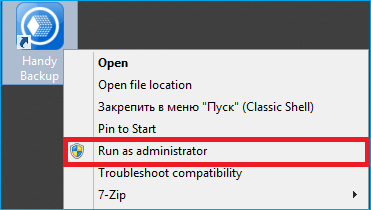
After doing that, create New Task and try to back up your data.
If you have no access to all Windows folders, try to take an access by doing the following things:
- Right Click on the Handy Backup shortcut;
- Select the Properties option;
- Click the Security tab;
- Here, add permissions to a current user and program.
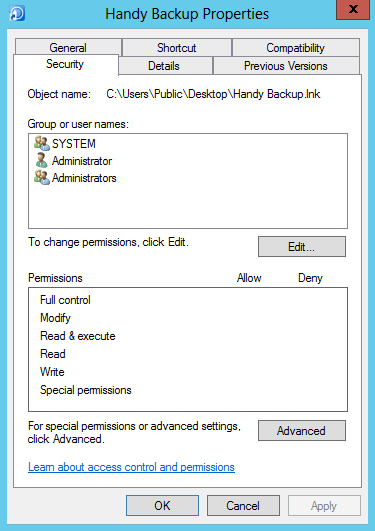
If it does not help, send us a letter containing the content of the Handy Backup 8 folder with detailed logs and tasks to [email protected].
You can find the Handy Backup 8 application folder at the following path:
- C:\ProgramData\Novosoft\Handy Backup 8
You can also access Handy Backup 8 folder through the interface of the program by clicking the "Access configuration files..." option in the "Help" section of the tool bar.
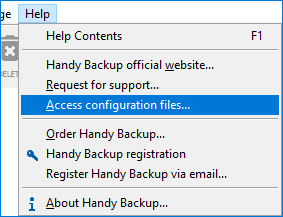
Related pages:
What is the 'Not enough Storage to process the command' error?
To process data during the backup, e.g. apply compression, encryption, or perform byte-level comparison for differential backups, Handy Backup actively uses temporary files. For operations involving large sets of data, there may be not enough space to create a temp file, which will result in the above error.
If you see this error, you can change the location of your temporary directory (this is done in Settings -> General Settings) or divide the task into several smaller ones.
What is the 'Reached the end of the file' error?
Keeping information about data backed up allows you to use the incremental backup and differential backup functions. The list of files, along with their sizes, modification dates and other attributes, is kept in index files (.hbi). When you run a task, Handy Backup reads the index file and determines which files were changed and which were not.
If you see the “Reached the end of the file” error, then the index file is corrupted, or you are using an old version of Handy Backup that can’t read it properly. To fix, the problem, delete the file and re-run the task.
What 'Failed to Run Volume Shadow' Message Means and How to Fix It
Sometimes Handy Backup users might meet an alert:
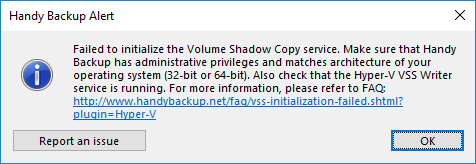
The most common reason for the error message is using a Handy Backup version that does not correspond to the OS architecture. If you see this, then you are most likely using 32-bit version of Handy Backup under 64-bit version of Windows.
 Download Trial
While most functionality works correctly under any system, several important features rely on compatibility with the operating system. These features include live disk imaging, hot MS SQL and MS Exchange backup, open file backup, and much more.
That′s why it is important to use 64-bit version of Handy Backup under 64-bit version of Windows.
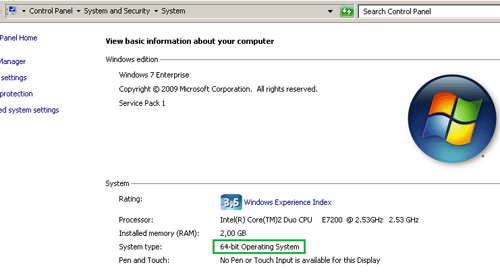
How to Check if You Have 32-bit or 64-bit Windows
To check your Windows version, follow these steps:
- Under Windows Start menu, open Control Panel.
- In the Control Panel window, click System and Security, and then click System
- Find your Windows version in the System type property.
See the screenshot below for more details:
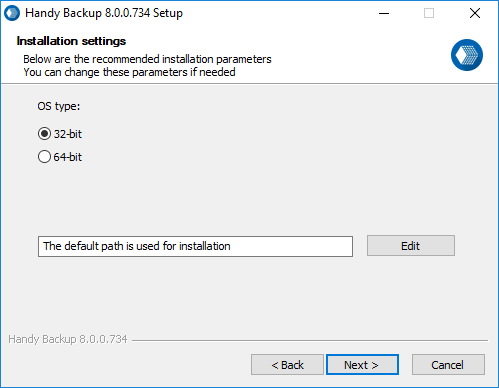
How to Select 32- or 64-bit Version When Installing Handy Backup?
When you need to install a 32- or a 64-bit version on your machine, select an appropriate version in the settings window, as shown here.
- Start the Handy Backup setup procedure.
- On the welcome screen, click onto "Change recommended parameters".
- The new window will appear. Here, select a version (32-bit or 64-bit) of Handy Backup that you want to install.
- Continue the program installation process.
Other Reasons Why VSS Might Fail to Run
Version incompatibility is the most common, but not the only possible reason why VSS might fail to run for backup needs. To make sure the product provides the most efficient performance regarding VSS, please check the following things:
- Make sure that Handy Backup has administrative privileges.
- For MS SQL Backup, make sure that the SQL Server VSS Writer is running.
- For MS Exchange Backup, make sure that the Exchange Server VSS Writer is running.
To see Windows services, open Control panel, click Administrative tools, and then click Services. The system will show the list of running services.
Do I Really Need VSS to Be Running?
It is highly recommended to enable the VSS service and let Handy Backup use it. Volume Shadow Copy is a core component for copying of data that can′t be "copy-pasted" in a common way. It provides the following features:
- Backup of open files and apps (e.g. Outlook backup)
- Backup of MS SQL Server, without having to stop the service
- Exchange Server backup - interruption-free as well
- Live disk imaging (making snapshots of an active system drive without booting a PC from a different disk)
If you have questions, don′t hesitate to contact us at [email protected]. We respond quickly!
Enjoy the smooth job of Handy Backup with a VSS running!
Handy Backup doesnt start with the error "Initialization failed. Reason: Failed to create program log"
This happens, when Handy Backup can′t get access to the tasks and log files. Please find the Handy Backup Application Data folder (Start -> Run %APPDATA%/Novosoft Handy Backup) and make sure that none of its subfolders doesn′t have the “Read-only” attribute.
What to do if there is no information about my error on the web-site?
If you cannot find any information about your error, please send us a letter explaining your problem with the content of the Handy Backup 8 folder with detailed logs and tasks to [email protected].
Usually, you can find the Handy Backup 8 folder at the following path:
- C:\Users\%Username%\AppData\Roaming\Novosoft
Also you can access Novosoft folder through the interface of the program by clicking the "Access configuration files..." option in the "Help" section of the tool bar.