MSSQL Automatic Backup and Recovery
MSSQL backup is a part of overall data security for any Microsoft SQL Server solutions. To back up MSSQL database content with minimal effort, you can use completely automated solutions such as Handy Backup with its dedicated "MSSQL" backup and restore plug-in. Compatible with Microsoft SQL Server from 2008 to the latest versions, including 2016, 2019, and 2022, it ensures reliable performance across different environments.
 Download Trial
Key Features of MSSQL Backup with Handy Backup
MSSQL Automatic Backup
The dedicated "MSSQL" backup/restore plug-in allows automatically finding and saving content of SQL server, as well as restoring it with almost no effort. No MSSQL restore scripts, no batch files, no console utilities – all operations within a single automated solution!
Scheduling MSSQL Backup Operations
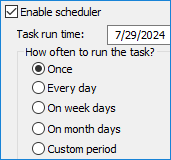
To add to overall automation, you can schedule any MSSQL backup or recovery task by an exact time and an exactly defined repeating interval, from one minute to several months. In addition, you can backup MSSQL database by triggering this operation to some system event.
Extra Options for MSSQL Backup and Restore
These options include such things as MSSQL incremental backup, re-running scheduled but missed tasks, starting other programs (e.g., a MSSQL backup batch file that stops a server before backup and restarts it after a task will complete), and notifications by email about task results. Still, all features in one pack!
Testimonials About MSSQL Backup Software by Handy Backup
Recommended Solution
Lifetime license
Handy Backup Small Business
The Small Business solution for a single server allows making MSSQL backup out-of-the-box, with all storage solutions and backup features at hand!
Where to Keep MSSQL Backup Data?
Handy Backup software provides many options for moving MSSQL backup to S3 cloud, or to a NAS, or a detailed set of possibilities describing how to backup MSSQL database to local machine, and other. The full list of storage options for MSSQL automatic backup includes:
- Local, external and network drives (either shared or mapped);
- MSSQL backup FTP, SFTP and FTPS servers;
- WebDAV and S3 clouds, including private clouds on data servers or NAS units;
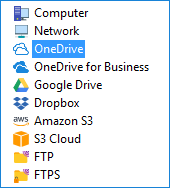
- Commercial clouds such as OneDrive, OneDrive for Business, Dropbox and Amazon S3.
Other Advantages of Handy Backup as MSSQL Backup and Recovery Solution
Among other crucial features of Handy Backup as MSSQL backup software are such things as:
- Encryption, to protect your MSSQL database backup from theft.
- Compression, which allows making a MSSQL backup ZIP archive from a database.
- Partial backup, which allows incremental, differential or mixed MSSQL backup types.
- Keeping many versions of the same MSSQL backup dataset.
- Hot MSSQL backup, allowing saving data without stopping a MSSQL server.
How to Backup MSSQL Database?
Setting up MSSQL backup with the dedicated plug-in is very easy. To make a MSSQL automatic backup task, please follow the next short instruction.
- Open Handy Backup and call a New Task Wizard by clicking a button or a selecting a menu item.
- On Step 1, select the backup task and click "Next" to go to the Step 2.
- On Step 2, open the "Database" group on the left and select MSSQL.
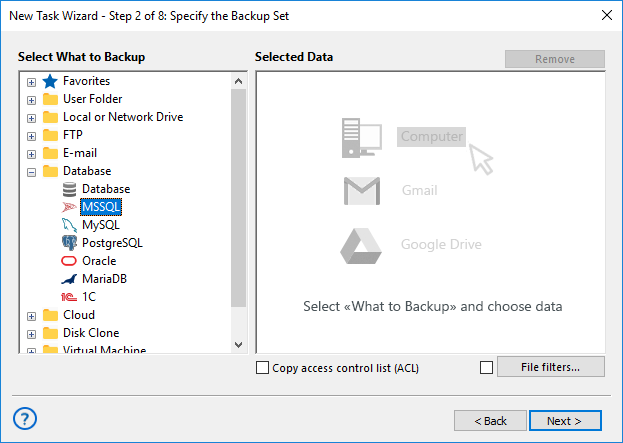
- Click on the plug-in name to add MSSQL to data list.
- You will see the "Select data…" plug-in dialog with a tree-list of databases and tables.
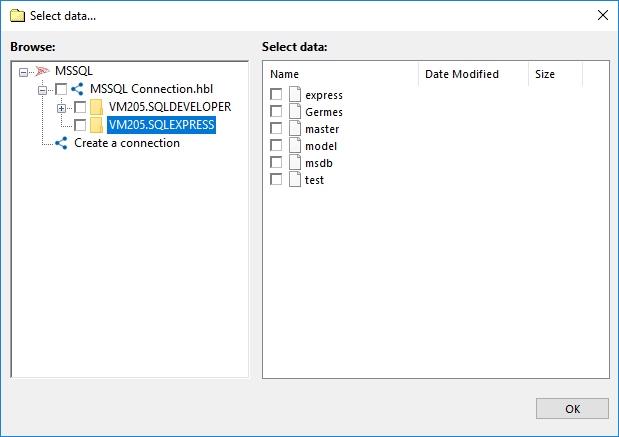
- Mark a checkbox against the name of each database or table that you plan to save.
- When you finish selection, click OK and return to the Step 2 window.
- Continue creating a task as described in the User Manual.
Video: Creating a MSSQL Backup Task
This short video will show how to create an advanced, full-featured task for MSSQL backup to Dropbox. You can read much more about MSSQL cloud backup on this website. Here, show how easy and convenient is the process of task creation in an advanced mode taken with a New Task Wizard.
An advice. Note that you can create a new connection instead of an existing one, as described here. To make a connection, click "Create a connection" after selecting a plug-in (either MSSQL on Step 2 or some cloud on Step 3 for making MSSQL backup to cloud. Enter your login and password, and name a connection!
Creating a MSSQL Restore Task
- Create a new task as described above, and select a restore task on Step 1.
- On Step 2, choose your MSSQL backup vault and find a file backup.hbi in it.
- Select this file and click "Next". Here the program may request a password for encrypted MSSQL backup.
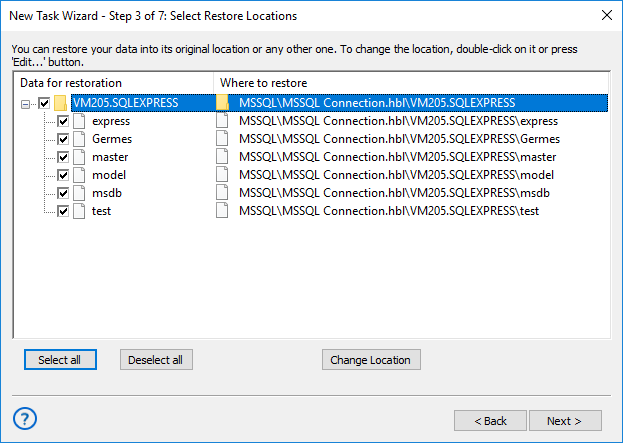
- You will see a list of MSSQL restore data on Step 3.
- You can continue creating a MSSQL restore task as described in the User Manual.
Note: We are strongly recommending creating a MSSQL backup for a server or a database before running a recovery task with this database as destination, to protect your data from accidental loss or unwanted changes during other MSSQL backup and recovery actions!
Mirroring and Replicating MSSQL Backup
If you want to make an automatic replication task, use advanced mode on Step 1 for your MSSQL recovery. Then go to Step 3 of the New Task Wizard and click onto the "Change Location" button. You will see a dialog for selecting a new destination where MSSQL restore database.
- With the MSSQL plug-in, select a desired location for databases that you restore.
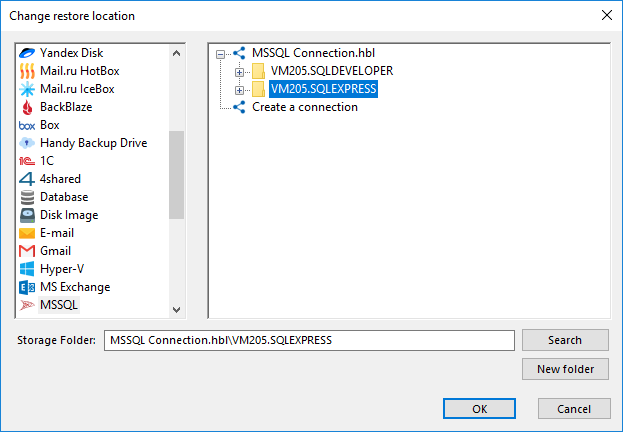
- Click OK to continue. Proceed step by step until finishing task creation.
An advice: You can schedule your replication task to make regular automatic MSSQL backup and restore actions. Keep in mind that you must provide enough time between MSSQL backup and recovery tasks, which will guarantee that a backup task will complete before taking recovery!
FAQ about MSSQL Backup Plug-in
Question: How does backing up MSSQL affect the operational status of MSSQL server?
Answer: MSSQL Server database can be backed up and restored in both active and inactive server modes. All database-related functions of Handy Backup support hot and cold backup technology which enables you to copy the data without stopping the server.
Question: Can I use the generic Database feature to back up MSSQL server?
Answer: Sure. However, yuu must install an appropriate ODBC driver for your MSSQL Server instance, and some native functions of MSSQL backup can be unavailable or significantly slower with a generic Database feature instead of dedicated MSSQL backup tool.
Download Trial
Experience the might and easiness of Handy Backup as your trusted MSSQL backup and restore tool!
Try it by downloading a 30-day free trial!
"In Handy Backup 8, the MSSQL backup plug-in allows me not only copy and recover my database but also make clones in automated mode! This is a truly precious gift, as I can make a distributed net of MSSQL clones between our customers without any additional effort!"
Charles Brooks, a system administrator for "Nortrope Chems, Inc.", WA