System Recovery Software Tool
System Recovery is a dedicated Handy Backup feature allowing creating a snapshot of an entire operating system, saving it as a Virtual Hard Drive (VHD) image. You can open this system recovery disk later for browsing its content, or run it as the fully functional virtual machine drive!
 Download Trial

Advantages of the Dedicated System Recovery Tool

Ready-to-Run Virtual Machine Drive
This plug-in creates a VHD file, which can be used as the workable image for a VirtualBox virtual machine manager. You can use the operating system recovery file at any time when you need it, and on any computer containing a copy of some VM software such as VirtualBox.

Creating a System Recovery Disk
The “System Recovery” plug-in creates a precise copy of your system, which can be used for making a bootable drive (for example, with an IT disaster recovery program) and restoring your system from scratch when the need emerges.

Browsing a System Recovery Disk for Specified Data
Some file-management tools allow opening the VHD files to browse the content for specified files, folders or other data. Therefore, you have no need to recover system totally to find just a couple of files you need. Instead, you can open the system recovery disk as a VHD file and pick data from it.
What OS Type You Can Use for System Recovery?

Handy backup will run under any modern version of Windows, including Windows 11, 10, 8/8.1 and 7, or server editions such as Windows Server 2025, 2022, 2019, 2016, 2012 and 2008 (with or without R2 service packs).
Using the Disaster Recovery functionality, you can restore a Windows system after critical failures, hardware replacement, or system corruption. The recovery environment allows you to boot the machine and restore the system disk from a previously created backup image.
Recommended Solution
Lifetime license

Handy Backup Professional
To have full access to system recovery options, create recovery drives and prepare yourself for easy system recovery, you need the Professional edition, or higher.
How to Recover System from an Image with Handy Backup
To make an operating system recovery image you can utilize the dedicated “System Recovery” plug-in. Please follow the next instruction to set up a task that will create a system recovery disk:
- Open Handy Backup, and create a new task by selecting a menu item or by pressing Ctrl+N.
- Select a backup task on a Step 1, then proceed to Step 2 and select “System Recovery”.
- A new window will appear, providing a list of physical drives for selection.
- Select your system drive(s) to back up by marking checkboxes against drive name(s).
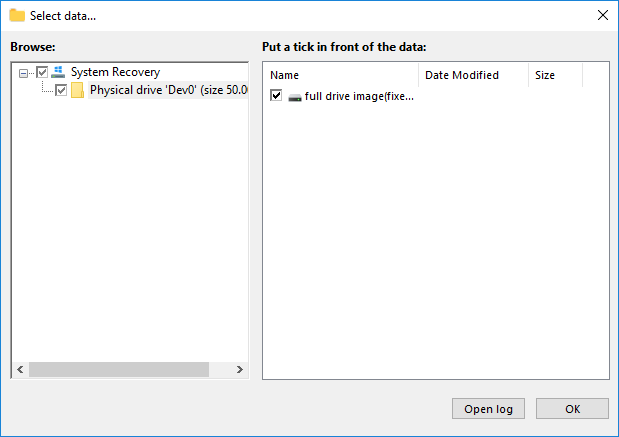
- Press “OK” and return to the data selection window. Proceed to the Step 3..
- On this step, select a storage media for your system recovery disk image. Check if this media has enough size to contain this image. System recovery drive images are often very bulky!
- Create all other task parameters by setting up system recovery options step by step, as described in the User Manual.
Note: You can schedule your task to execute for a time, or by plugging a USB device linked to this task to your computer.
- Finally, give your task a name. Now it will ready to work!
Utilizing a System Recovery Copy
Now you have a copy of a system drive, and let you use it for recoveries. Gat a USB drive (perhaps a flash unit or and external disk), and create a bootable USB drive by using the “Restore” button on a toolbar. Here, follow the instruction of a recovery drive wizard.
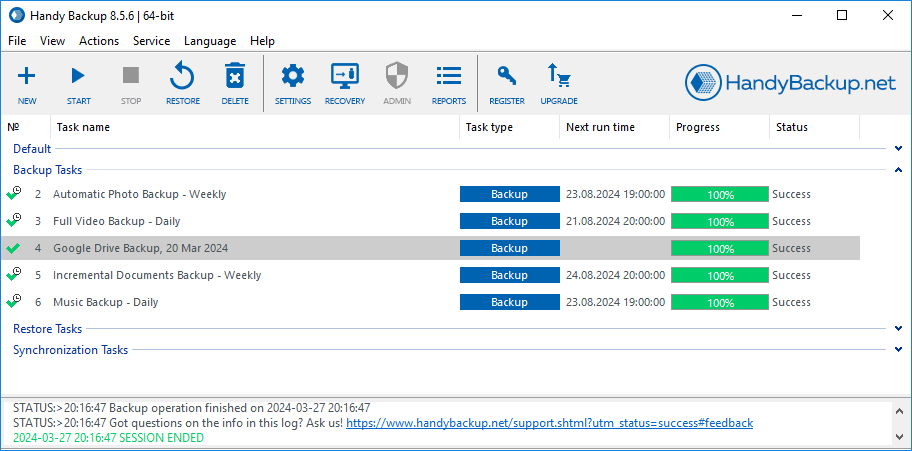
Next, download a copy of a system recovery image in a VHD format to some local drive connected to recovery computer. This can be a USB recovery drive or any local disk, for example. Run the Disaster Recovery utility, create a recovery task and follow the instructions of a task wizard.
Caveat: You must have enough space in selected storage to get a VHD copy for system recovery, because it can require many gigabytes to back up a drive image properly!
Download Trial
The System Recovery software plug-in is a fast, flexible and effective tool allowing backing up full images of your operating system. Get an experience of using it by downloading a completely free trial edition of Handy Backup for a period of 30 days!