Outlook 365 Backup Software
Office 365 email backup tool is designed to secure your essential emails and data stored in Microsoft's cloud service. With Handy Backup, you can effortlessly perform Outlook 365 backup and protect crucial information from accidental deletion or data loss. To enable Outlook 365 automatic backup, download our 30-day trial version and safeguard your email data with ease.

Why is Office 365 Email Backup Software Necessary?



Business Continuity
Backup Outlook 365 emails consistently to maintain continuos business operations. In case of technical issues or equipment failure, access your email backups quickly to minimize financial impact.
Threat Protection
Back up Outlook 365 data regularly with efficient Outlook 365 backup software to prevent data loss from ransomware attacks, ensuring swift recovery and enhancing your overall security strategy.
Legal Requirements
Preserve and provide easy access to your data to comply with regulations. Facilitate regulatory inspections by ensuring your backup supports strict adherence to legal mandates in data handling.
The Advantages of Handy Backup for Outlook 365 Automatic Backup
Rapid Hot Backup
Safeguard your Outlook 365 data swiftly and efficiently with VSS backup, ensuring minimal disruption to your workflow.
Scheduled Backup
Automate your Office 365 mail backup effortlessly on your schedule for consistent protection without manual effort.
Native Format Backup
Preserve your Outlook 365 data exactly as it is, without any conversions or alterations.

Secure Outlook Backup
Secure emails by using encrypted transfer protocols like S3, SFTP, or by implementing backup encryption for added security.
Various Storage Options
Backup Office 365 emails to local and remote hard disks, USB drives, cloud services, WebDAV, NAS, or FTP/SFTP/FTPS servers.
Fast Outlook Restoration
With Handy Backup, enjoy swift restoration of your Outlook 365 data whenever you need it.
Additional Features for Seamless Outlook 365 Backup

Migration ensures smooth transitions between services with no data loss, with the help of a reliable email migration tool.
User-Friendly Interface offers a clean design, making it easy to manage and monitor outlook 365 backup activities centrally.
30-Day Trial allows full access, letting you explore our office 365 email backup and restore tool without any commitment.
Windows Compatibility ensures smooth performance and full support for Windows 11 backup and earlier versions.
24/7 Support provides assistance with troubleshooting, technical guidance, and user inquiries anytime.
Easy to Learn interface makes it simple for users to quickly utilize our Office 365 email backup software.
Affordable Editions provide various pricing options, allowing users to select a plan suited to their budget and backup needs.
Lifetime License offers a one-time payment solution, eliminating recurring costs and providing long-term savings.
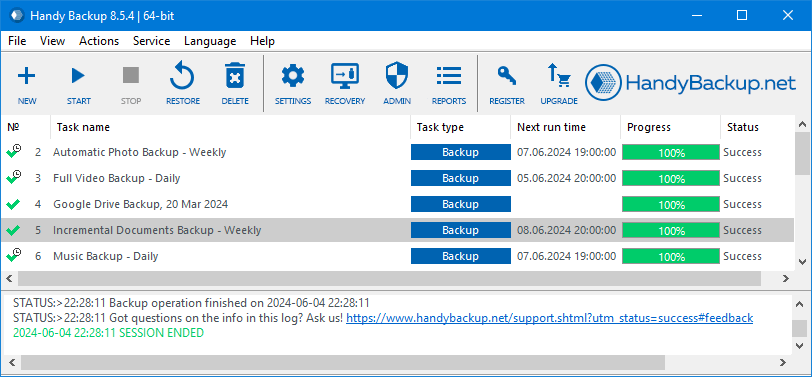
Recommended Solution
Lifetime license
Handy Backup Professional
Handy Backup Professional provides seamless protection for your Outlook 365 emails, ensuring they are always secure and accessible. Try our 30-day trial version of the Outlook 365 automatic backup tool today to experience effortless backup scheduling and advanced security features. Safeguard your emails by using Handy Backup to effectively backup Outlook 365.
How to Backup Outlook 365 Emails with Handy Backup?
To effectively backup Outlook 365 emails, it's recommended to use the IMAP protocol for seamless IMAP email backup. Before proceeding, ensure IMAP is enabled in the Exchange Admin Center by navigating to Mailboxes > Manage email app settings. Once completed, follow these instructions to perform Outlook 365 automatic backup with Handy Backup.
- Open Handy Backup and create a new task by clicking the "New Task" button, pressing the Ctrl+N button combination, or selecting it from the "File" menu dropdown.
- Choose a backup task in Step 1 and utilize the advanced mode to fully leverage our Outlook 365 Backup Software's capabilities.
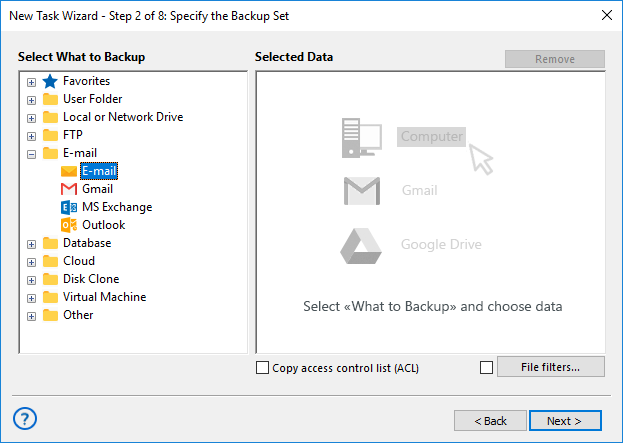
- Proceed to Step 2, select the E-mail plugin, and create a connection to the IMAP email backup server.
With Handy Backup, you can also back up other Microsoft products, including Exchange Server and the Outlook email client.
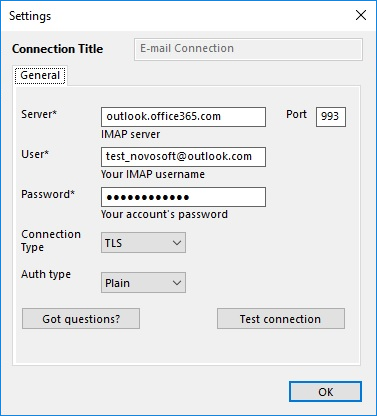
- Enter the required parameters to access your account. You can test the connection beforehand to ensure its validity.
Use the following Outlook 365 email server settings:
- Server: outlook.office365.com
- Port: 993
- Connection type: TLS
- User: Your Office 365 email address
- Password: Your Outlook 365 password
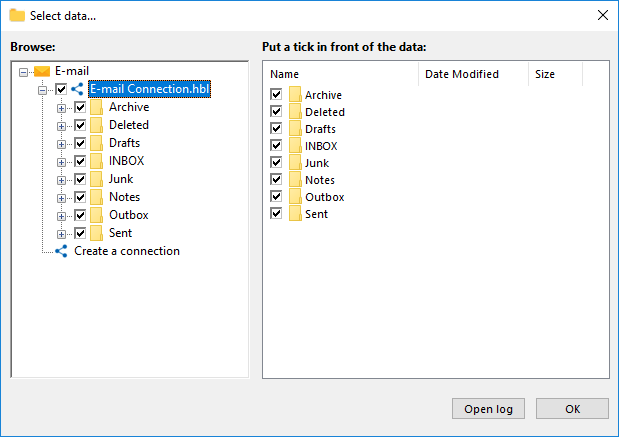
- Click OK to view folders and messages, then select the data to include in the backup.
- Click OK again to return to the Step 2 window. Proceed with creating your task by selecting the storage destination for your mailbox backup in Step 3.
- In advanced mode (Step 4), you can execute essential tasks tailored to Outlook 365 full backup, including incremental backup for content and preserving multiple versions of the same mailbox.
Office 365 Mail Backup: Best Practices

Set Up Necessary Backup Frequency
Backup Office 365 email data regularly, especially if you handle confidential information or large email volumes. For most users, weekly backups may be enough, but critical environments may require daily or even real-time backups to prevent data loss.

Use Secure Backup Channels
Always protect your email data during transfer and storage. Use secure protocols like SFTP for data transmission and enable encryption both in transit and at rest, such as AES-256. This helps safeguard against interception, tampering, or unauthorized access.

Follow the 3-2-1 Backup Rule
Keep three copies of your data: two on different local devices and one offsite or in the cloud. This strategy reduces the risk of data loss from hardware failure, natural disasters, or ransomware attacks, ensuring your Outlook 365 backups are always accessible.

Use Partial Backup Methods
Instead of backing up Outlook 365 mailbox of yours entirely each time, use incremental or differential backups to save only what has changed. This significantly reduces storage usage and speeds up the backup process, especially for high-volume mail accounts.

Regularly Test Your Restore Procedures
A backup is only useful if it can be restored. Perform routine recovery tests to verify that your Outlook 365 data is restorable, complete, and functional across different environments or devices. This helps prevent surprises during an actual data loss event.

Enable Logs and Email Notifications
Keep detailed logs of backup operations and enable email alerts for successes, failures, or warnings. This provides transparency, helps troubleshoot issues quickly, and ensures you’re always informed about your Office 365 mailbox backup status.

Outlook 365 Cloud Backup
Using cloud storage for your backups allows secure remote access and an extra layer of redundancy. In case of physical infrastructure failure or remote work scenarios, cloud backups ensure your Outlook 365 data is still available. Common options include Google Drive, Dropbox, Amazon S3, and others.

Preserve Accurate Version History
Timestamps help track when emails were sent, received, or modified—vital for audits, legal holds, or internal reviews. Ensure your backup solution preserves this metadata and supports versioning to restore emails as they existed at any point in time.
Handy Backup Does It All For You
Handy Backup automates your Outlook 365 backups, ensures AES-256 encryption, maintains detailed logs and notifications, performs incremental backups, tests recovery processes, and securely stores your data in the cloud — including Google Drive, Dropbox, Amazon S3 and more.
List of Supported Clouds


Frequently Asked Questions About Office 365 Mailbox Backup Solutions
- Does Outlook 365 provide a built-in backup solution, or do I need third-party software?
Outlook 365 does not offer a fully automated backup solution. While it stores your emails and data in the cloud, it doesn’t provide a comprehensive way to back up or restore them outside of its retention policies. For more advanced backup features, including the ability to schedule backups and ensure data protection, third-party software like Handy Backup can be an excellent solution. Handy Backup offers a secure and reliable way to back up your Outlook 365 emails.
- How often should I back up Outlook 365 data to ensure it’s protected?
The frequency of your Outlook 365 backup depends on how often you receive or send critical information. For most users, backing up weekly is sufficient to ensure protection. However, if you handle time-sensitive data, daily backups are recommended. Using a third-party Microsoft 365 email backup tool like Handy Backup allows you to automate this process, providing peace of mind with scheduled backups and secure email retention, so your data is always safe.
- What happens to my emails if I accidentally delete them in Outlook 365?
When you delete emails in Outlook 365, they usually move to the Deleted Items folder, where they can be restored within a set retention period. However, if you permanently delete them or they’re beyond the retention window, recovery may be impossible. Using third-party software like Handy Backup can provide an additional layer of protection by backing up Oulook 365 emails regularly and ensuring you can easily restore them, even if they’re deleted from the server.




Multi-platform Solution
Handy Backup is compatible with all editions of Windows, ensuring seamless operation across various versions including Windows 11, 10, 8, 7, server editions like Windows Server 2022, 2025, as well as earlier editions, including Windows Server Essentials.


 Download Trial
Simplify your data management with our reliable Office 365 email backup tool. Download the free trial version of Handy Backup today to experience seamless Outlook 365 automatic backup and ensure the safety of your email data!