Creating Tasks for Linux Network Agents
After the Linux network agent has been installed and configured, task creation and management are performed through the centralized control panel installed on a Windows computer.
Network agents do not have their own user interface. They are managed through the centralized control panel, where you can connect to Linux workstations, select data, configure backup and recovery settings, and create and run tasks.
Instructions for creating backup and recovery tasks for Linux workstations are provided below.
Creating a Backup Task for the Linux Network Agent
- Select the “Create Backup” task type* and click 'Next'.
* Note: In this example, a task is created in Simple Mode. If you require more advanced program features, such as choosing the backup type, configuring pre/post-task execution, and so on, you should check the “Advanced Mode” option.
- On step 2, choose the connection to the Linux network agent (workstation):
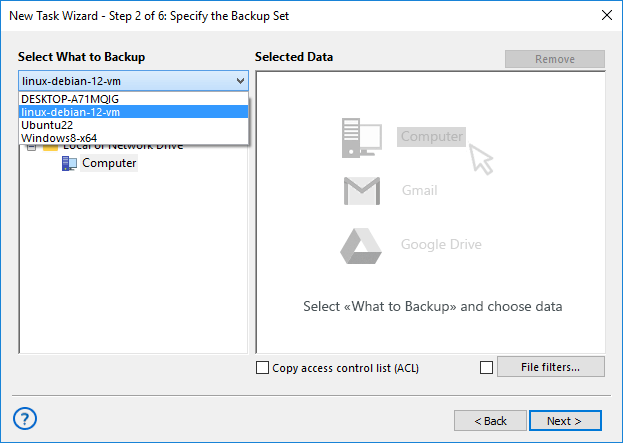
- Select the files and data you want to back up. For a Linux workstation, the Computer plugin is available. Depending on the distribution, the following plugins may also be available:
- Dropbox, Dropbox Business, Google Drive, OneDrive, OneDrive for Business, Amazon S3, and S3 Cloud: available for Debian 12 and 11, and Ubuntu
- PostgreSQL: available for Debian 12 and 11, and Ubuntu
- MySQL and MariaDB: available for Ubuntu
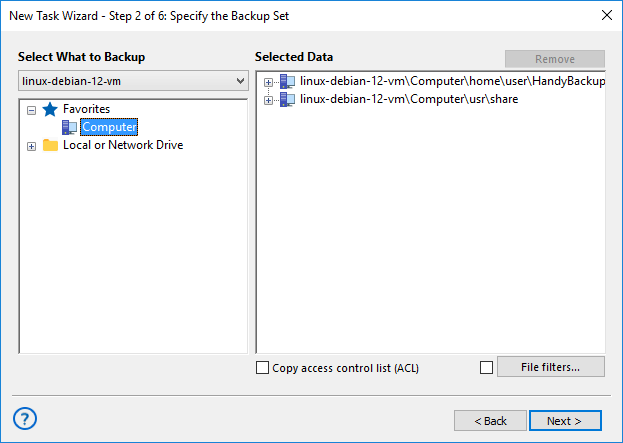
- On step 3, choose the location where backups will be created.
- On the next step, select compression and encryption options.
- On step 5, set the task schedule.
- On the final step, provide a task name and click 'Done'.
Setting Up a Data Restoration Task for the Linux Network Agent
- On the first step, select the 'Restore' task type.
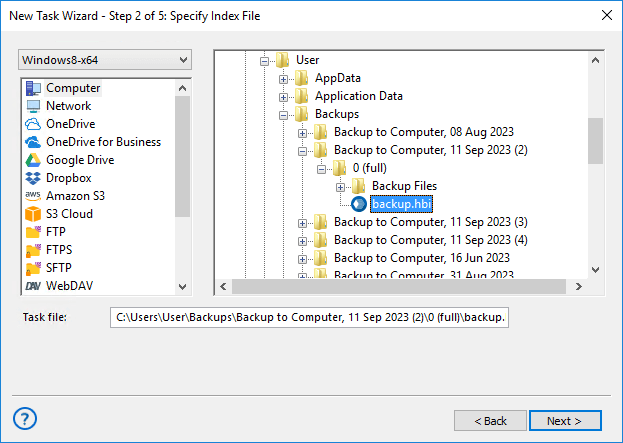
- On the second step, specify the location of the '.hbi' file for the recovery task:
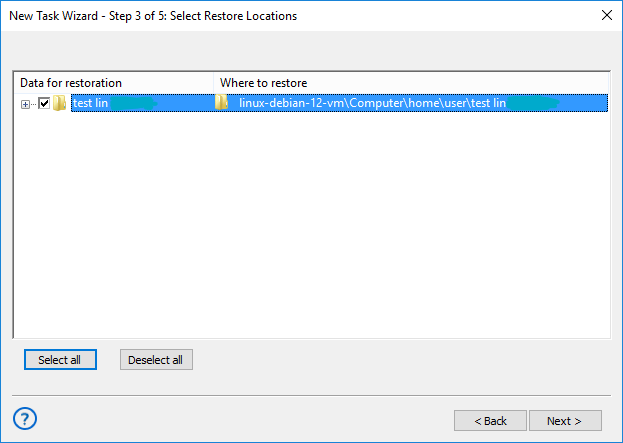
- On the next step, choose the files for recovery:
- On step 4, select the recovery type.
- On the final step, provide a name for the backup task and click 'Done'.
Related pages: Network Agent Troubleshooting, Server Backup Solution
Contents: